


When it comes to audio recording, editing, and production, Audacity is always highly recommended, albeit with a caveat: it looks hideous. I even remember using an early version of Logic back in 1999, and it was easier on the eyes than Audacity ever was. While the free audio editor has become a staple for a new wave of podcasters, musicians, students, and YouTubers, the interface has barely been revised in a quarter of a century — but all this changes with Audacity 4.
More than a fresh new look
Audacity finally feels like a modern creative app

The biggest update in Audacity’s 25-year history doesn't just give it a fresh coat of paint; it also rethinks the editing process and brings it up to par with modern audio software. And it does it without losing the familiar workflow that long-term Audacity enthusiasts enjoy.
The first time I downloaded and opened the beta version, I was pleasantly surprised. Where the old version was functional, it was also undeniably cluttered. Controls such as transport functions, zoom buttons, audio devices, and editing tools were spread across multiple rows of toolbars, leaving very little real estate for audio on the arrange page.
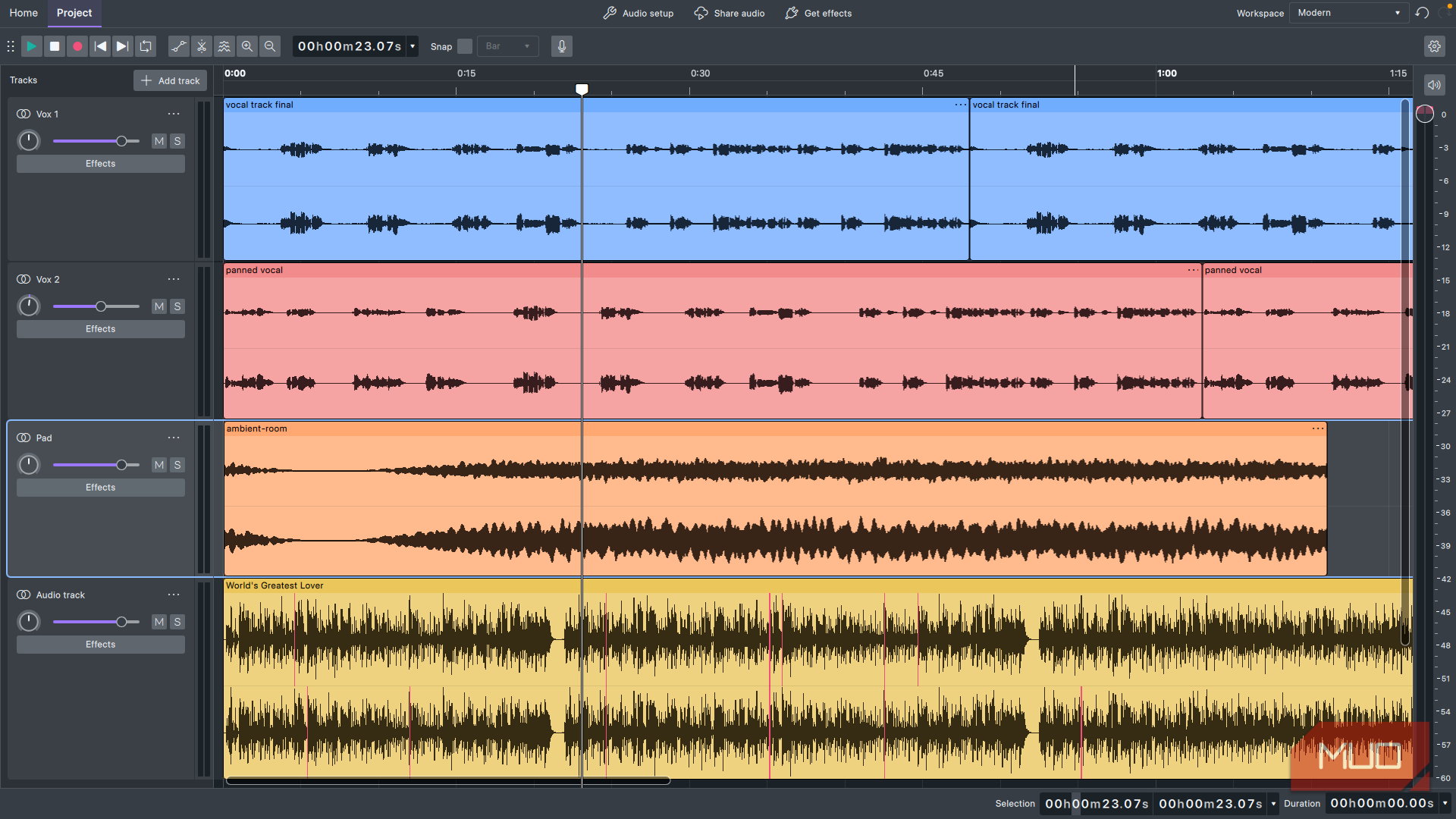
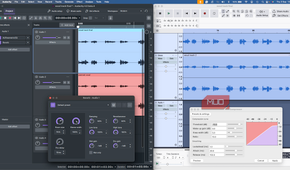
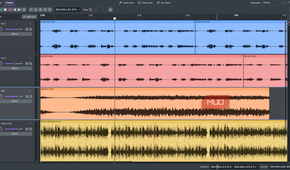
Audacity 4 has a much cleaner design that doesn’t look out of place alongside its latest competitors. Its icons are larger; fonts are crisp; dials and faders have a modern feel. It no longer feels cramped and utilitarian; instead, it prioritizes the tools you are currently using, resulting in a far more inviting creative space.
The workflow is smoother
You no longer have to switch between several different editing tools


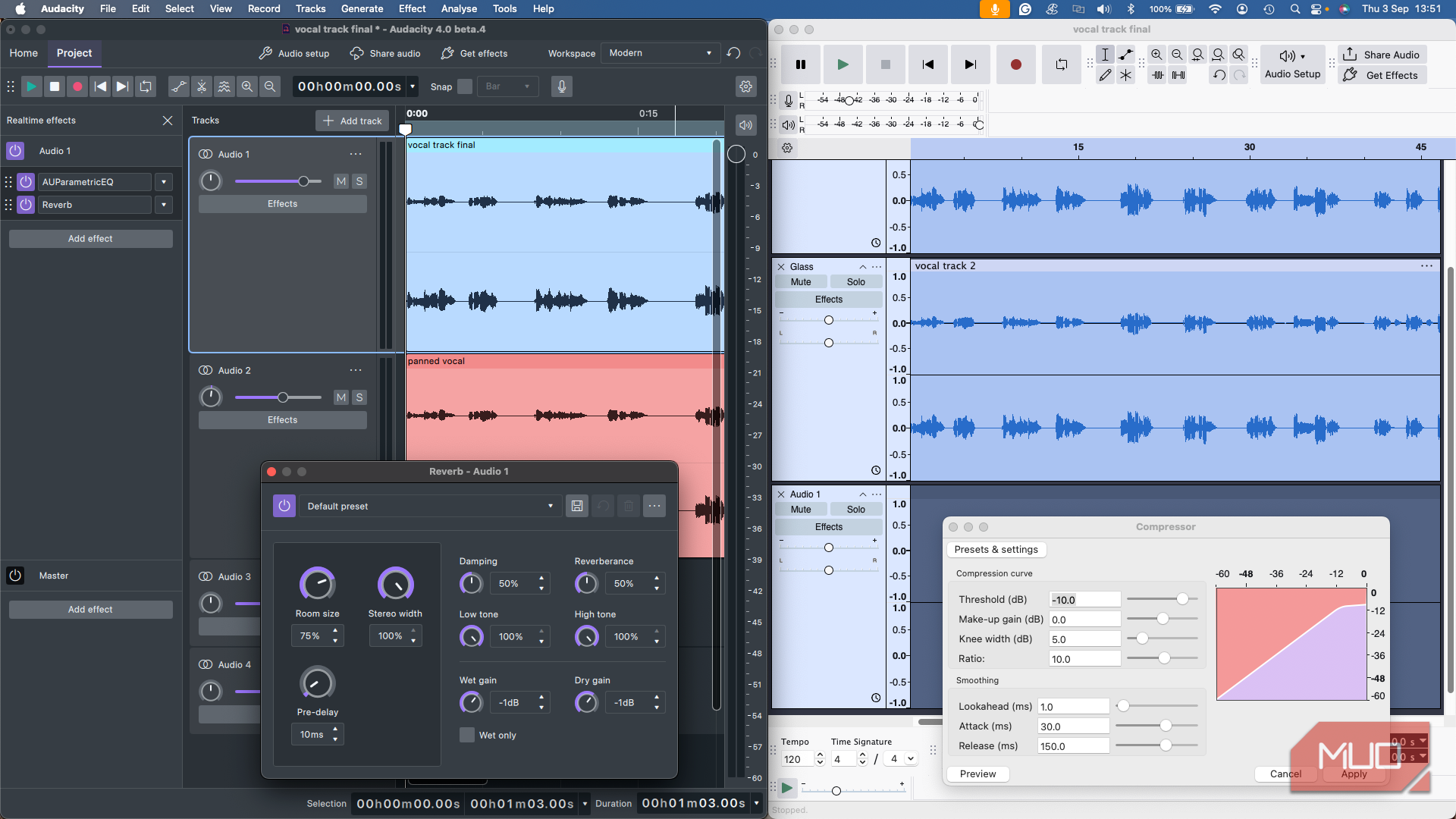
One of Audacity’s quirks that used to set it apart from other recording apps was its reliance on separate editing modes. Even before making a simple adjustment, you’d have to choose between the Selection Tool, Draw Tool, Envelope Tool, or Multi-Tool, which could become annoying during long work sessions.
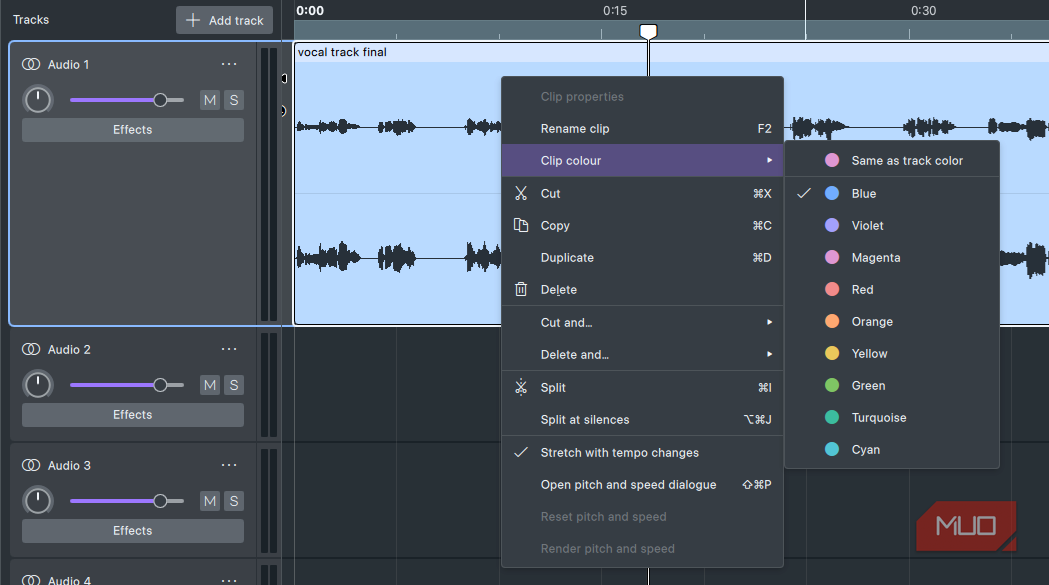
Now, editing is more intuitive. Simply click a clip to select it and drag its edge to trim or stretch it. If you zoom in close to an audio sample, the draw tool activates automatically, so you don’t need to manually select it. These seemingly small revisions make a big difference over the long term, and this improved usability extends to how it handles audio clips.
In older versions, moving clips around the arrange page was restrictive. Clips couldn’t easily overlap, and selecting multiple regions was awkward. Now, Audacity works as you’d expect an audio editor to work in 2026, and you can shift-click multiple clips, stretch them in unison, stack them on top of each other, and put the playhead anywhere you want and hit record.
Sync-Lock is notably absent
Audacity’s most confusing feature has quietly disappeared

One feature I could never quite get on board with was Audacity’s Sync-Lock. This was meant to keep multiple tracks aligned while editing, but it wasn’t always straightforward. I’d find myself forgetting it was enabled, which could lead to catastrophic results, with audio regions scattered across the arrange page.
This feature has been replaced by Ripple Editing, and while the end goal of preserving synchronization is the same, it feels much more user-friendly. You don’t have to think about modes; rather, you choose actions such as “Delete and Close Gap” or “Insert and Preserve Sync.” The editing capability stays the same, but everything feels much slicker.
Purists needn’t worry
You can still make it look like the old Audacity

Those who prefer the old aesthetic can rest easy, as Audacity 4 lets you choose either a classic or a modern workspace on the fly. You can also customize toolbars, dock, or float panels, save multiple workspace presets, and switch between them depending on what you happen to be working on, whether that’s recording music, editing podcasts, or restoring old audio.
While it’ll be comforting to many to know that they don’t have to get used to a whole new platform, I’d urge everyone to give it a go. While basic elements like the arrange page, transport bar, and audio regions differ only in their aesthetics, the new interface comes into its own when you start adding effects, changing dynamics, and mixing tracks.
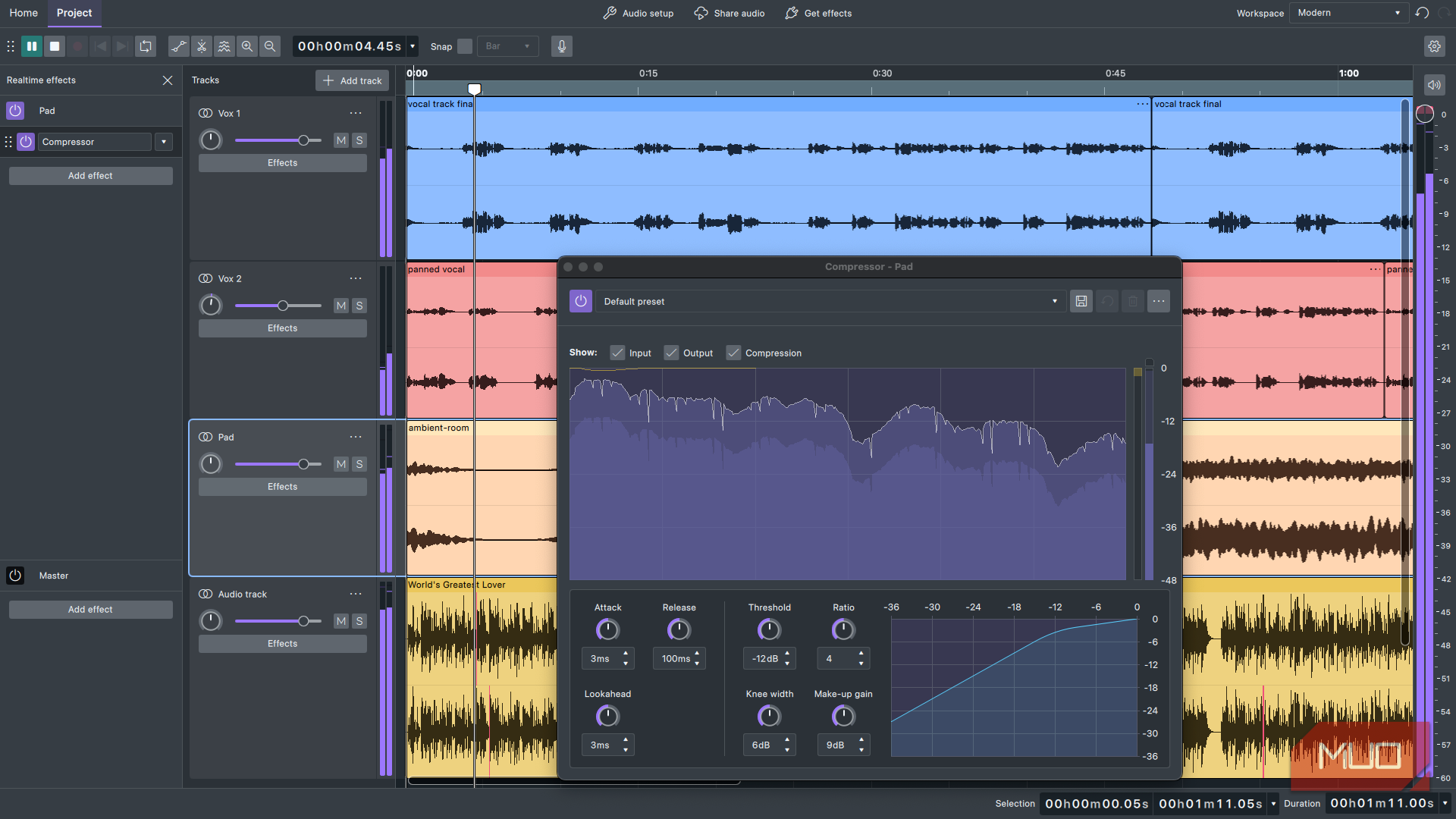
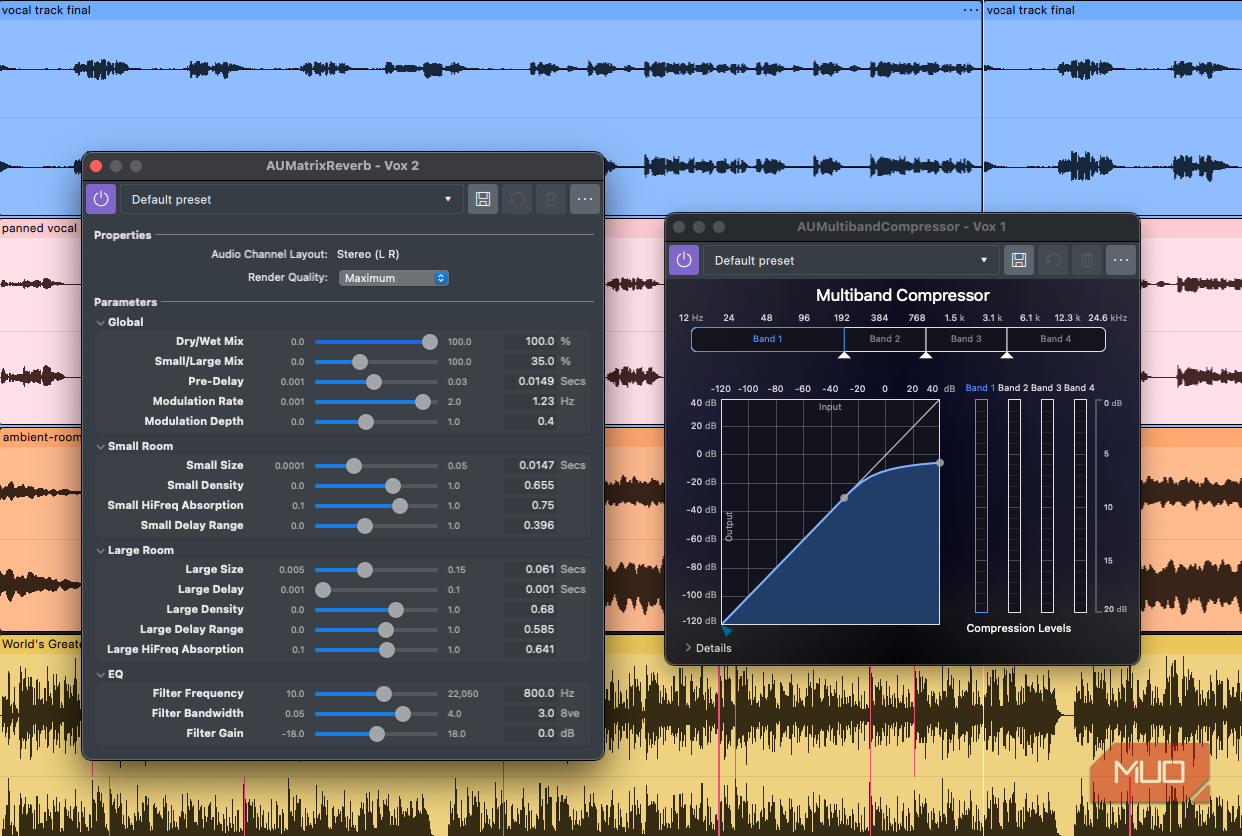
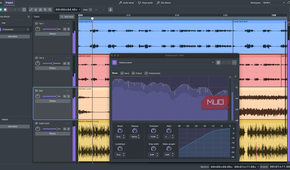
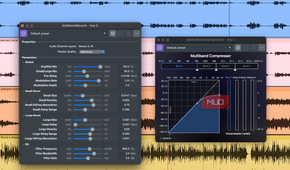
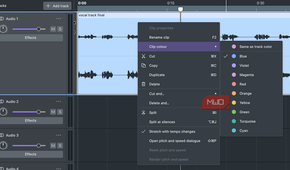
My Apple Audio Unit effects are transferred to Audacity, and their appearance and functionality closely match the interface quality in Logic Pro. Meanwhile, native effects like Audacity’s compressor feel far more intuitive and are a real pleasure to use. I find that dark mode is much more comfortable for longer sessions, and tracks are easier to distinguish when you assign them different colors — a vast improvement over previous versions.
All the best features wrapped up in a new, improved package
I always brushed off my reservations about Audacity’s terribly out-of-date appearance by telling myself, “It’s free, what do you expect?” Version 4 finally has an aesthetic that matches the app’s functionality, which makes me wonder what took them so long.
Whatever the reasoning, Audacity 4 is definitely a case of better late than never. It now boasts a less cluttered interface, more intuitive editing, and software that feels like it can rank alongside today’s expensive creative tools rather than being a useful freebie.
Audacity 4 has achieved the best of both worlds by improving the platform’s function and form, while keeping its familiarity intact.

Audacity
- OS
- Windows, macOS, Linux
- Developer
- Dominic Mazzoni
Audacity is a free, open-source, cross-platform audio editing and recording application that has become one of the most popular tools for creators, musicians, podcasters, and hobbyists.