


Microsoft 365 is not a bad product at all, even when you consider the premium plans on offer. The 1TB of OneDrive storage alone might be worth the cost, especially on a Family plan. But if you don't want to pay the annual subscription or don't need your documents synced, there are plenty of alternatives that can replace Microsoft 365 for free.
I've been using LibreOffice for a while now as my primary office suite, and Mailspring as my email client. Together, I have a setup that covers everything I used to do in Microsoft 365, and I haven't had a reason to go back.
LibreOffice Writer
A Word replacement that handles real documents


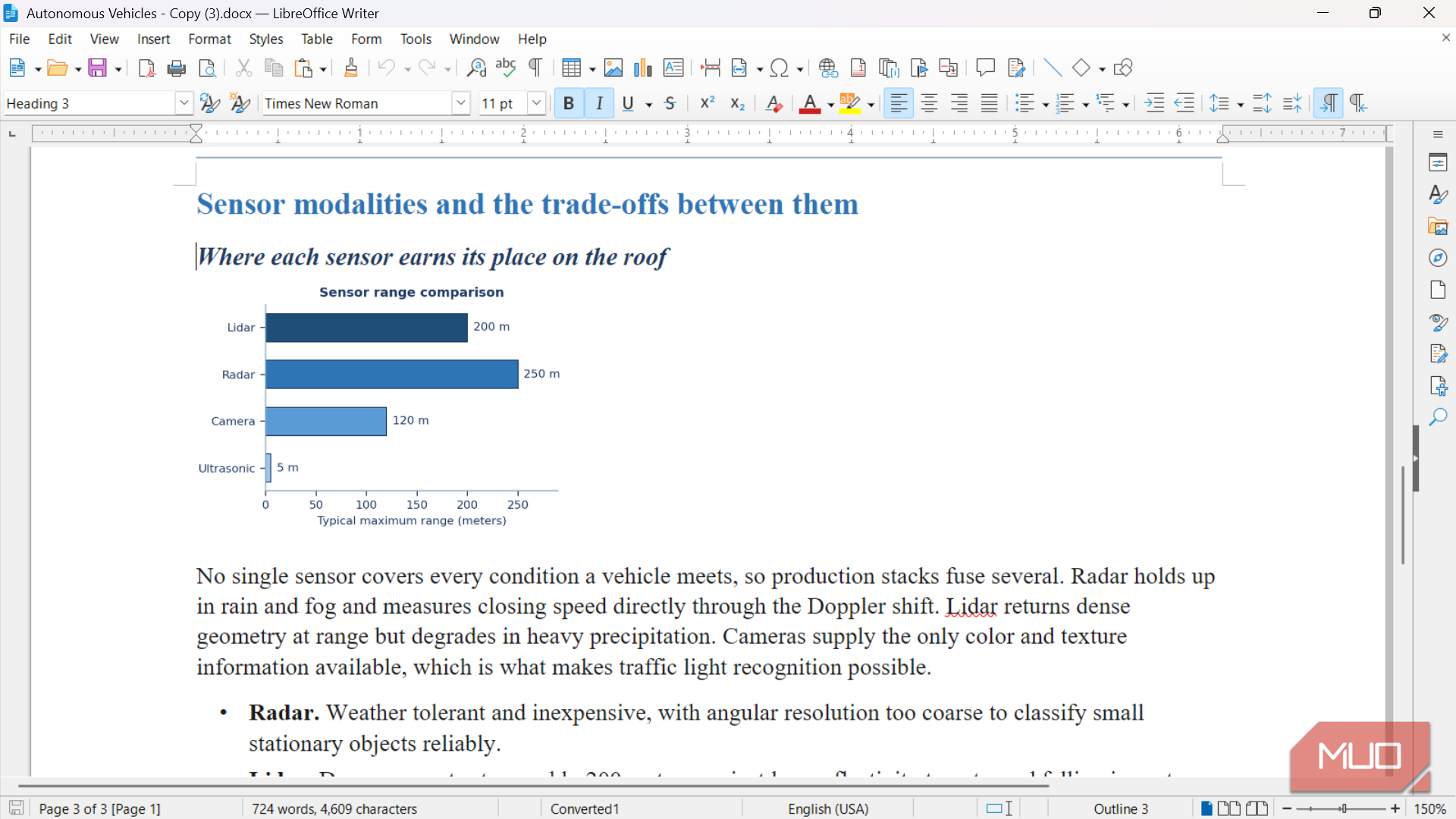
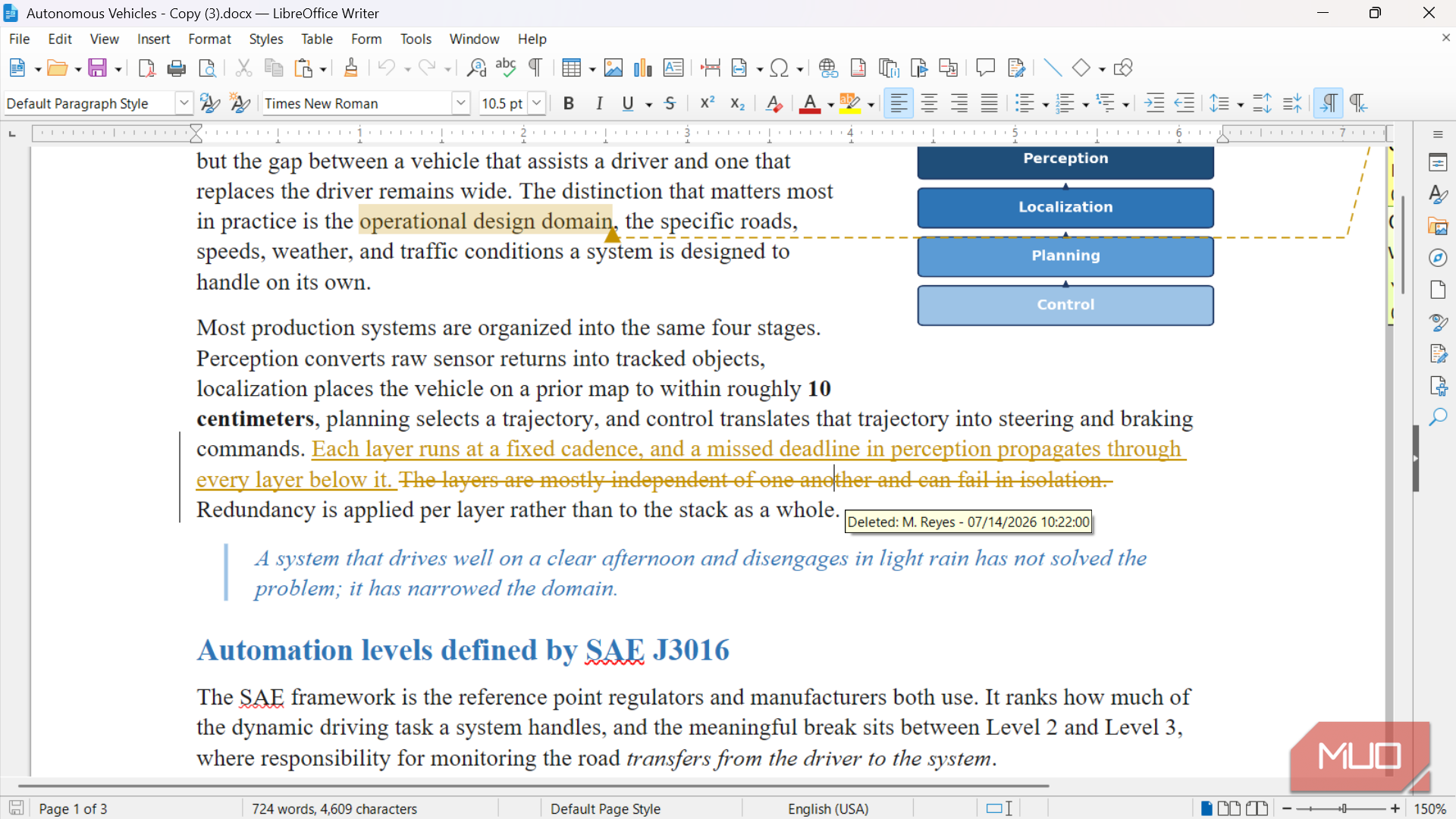
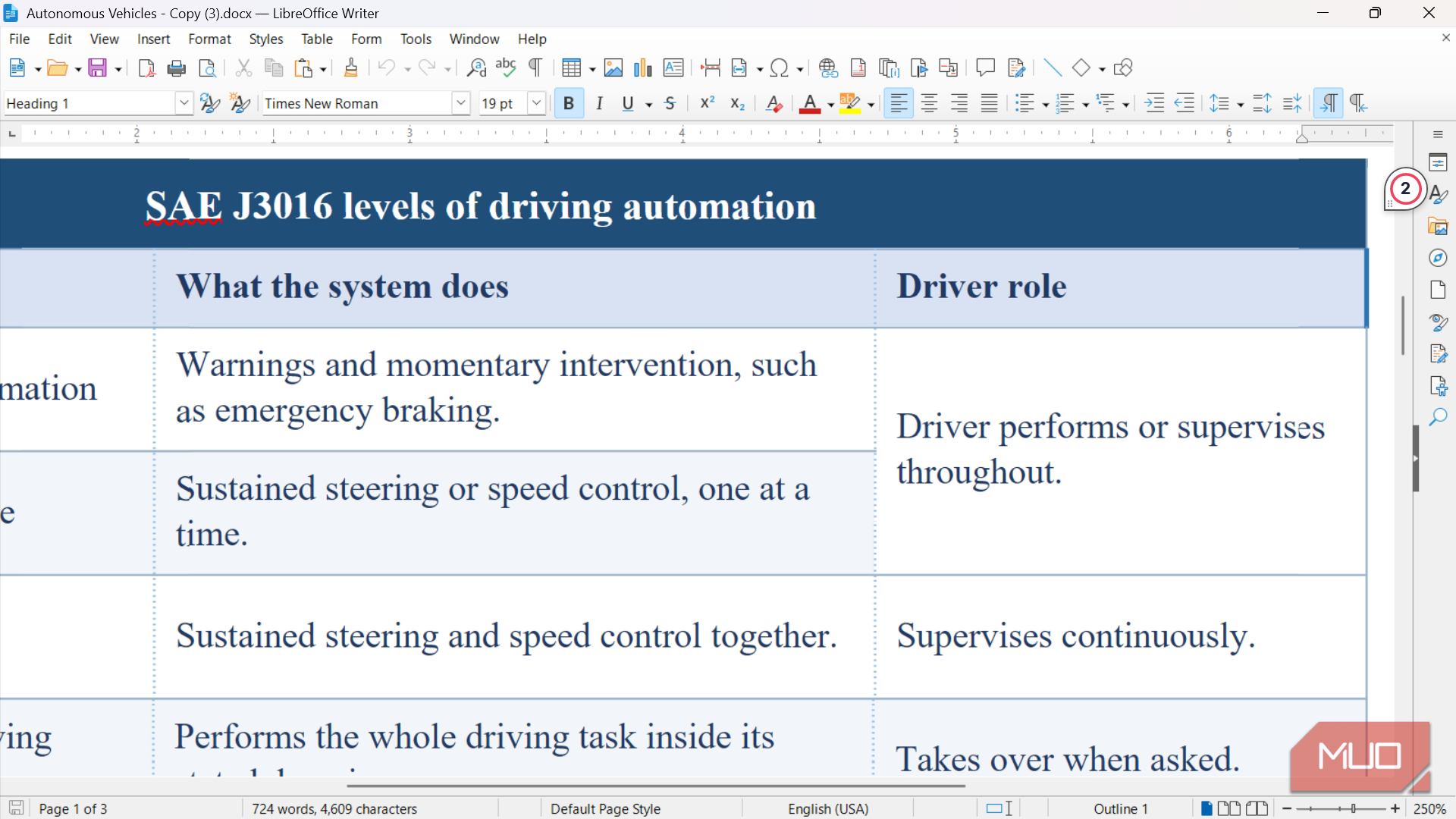
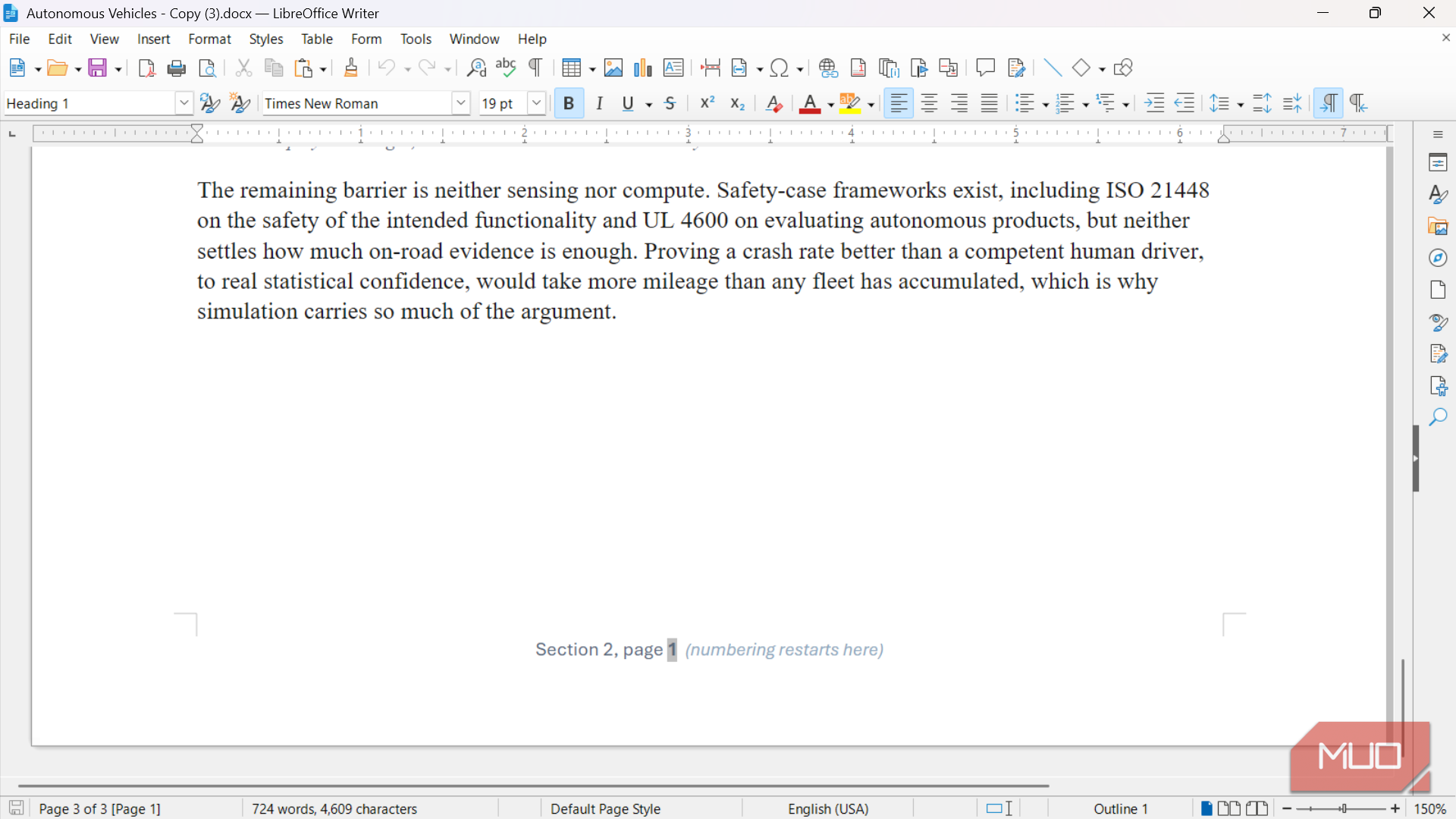
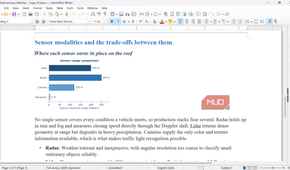
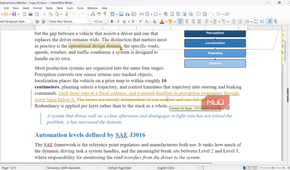
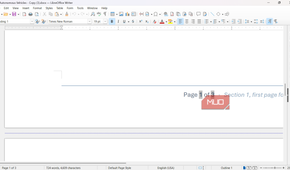
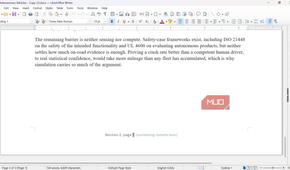
Writer was the first app I tried when I started looking for a Word alternative, and it's the one that convinced me LibreOffice was worth sticking with. I also use Obsidian to write in Markdown, but when I need Word format support, Writer gets the job done.
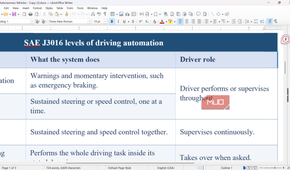
I opened a few of my old Word documents in it, ones with tables, custom styles, and a mix of formatting, and they loaded without any issues. Format preservation is important because if my existing files don't open properly, it hardly makes sense to use that app.
Day to day, Writer does everything I need from a word processor. I can format text, insert images, create tables, and export to PDF without leaving the app. The toolbar layout feels familiar if you've used Word before, though it sticks with the classic toolbar instead of Microsoft's ribbon. LibreOffice does offer a few different toolbar arrangements, but the standard one is the most usable.
The one area where Writer still feels rough is its styles system. Applying a style takes a double-click, and the sidebar jumps around as you scroll through a document, which makes it harder to use styles quickly.
LibreOffice Calc
A solid spreadsheet for every day number-crunching

Calc picks up where Writer leaves off, giving you a full spreadsheet app without needing an Excel subscription. For everyday work like budgets, tracking sheets, and basic formulas, Calc does the job well. It supports familiar functions like XLOOKUP and SUMIFS, and tools like DataPilot (Calc's version of PivotTables) and Solver are there if you need them.
Where Calc falls short is at the advanced end. It doesn't have Power Query for pulling in and transforming large datasets, and it lags behind Excel in adopting newer functions like LAMBDA. If your work involves heavy data analysis or large-scale models, Excel still has a clear edge. Calc also doesn't match Excel's real-time collaboration features, since it's built as a desktop-first app with local file storage.
But there's a privacy angle to it too. Calc doesn't collect usage data, there's no AI processing your files in the background, and the source code is open for anyone to inspect. If you want to keep your spreadsheets entirely on your machine with no cloud involvement, Calc gives you that without asking for a subscription.
LibreOffice Impress
A presentation tool that gets the basics right

Impress rounds out the LibreOffice suite as the PowerPoint replacement, and it covers more ground than you might expect from a free app. It comes with a library of built-in templates, a slide panel on the side for organizing your deck, and content placeholders that work the same way PowerPoint's do, where you click to add an image, chart, table, or text.
But what about compatibility? Impress natively opens and saves .pptx files, so you can receive a PowerPoint deck from someone, edit it, and send it back without anyone needing PowerPoint. I did notice some font differences when opening files made in PowerPoint, but installing the Microsoft font pack (which includes fonts like Arial and Times New Roman) closed that gap almost entirely.
Impress isn't as polished as PowerPoint. It's missing some of the higher-end features like Designer or Morph transitions. But for putting together a presentation with slides, images, transitions, and animations, it handles the job. Most people watching a presentation won't notice which app made it, and that's a good indication of how close Impress comes to PowerPoint.
Mailspring
A modern email client that replaced Outlook for me

Moving away from Outlook was the part of this switch I was the least confident about. I switched from Outlook to Thunderbird first, but the lack of a native conversation view pushed me to keep looking. That's when I found Mailspring, and it turned out to be a better fit than both.
The interface is obviously the difference you'd notice instantly. Mailspring uses a three-pane layout with folders on the left, your message list in the middle, and the email preview on the right. A contact sidebar shows you information about the sender along with your past conversations with them, which is a nice touch for catching up on context quickly. The conversation view groups related emails together natively; on Thunderbird, this feature needs an additional plugin, and that too feels wonky at times.
Mailspring also has some useful extras. It has a built-in translation for incoming emails, a follow-up reminder that nudges you when a sent email hasn't gotten a reply, and Mail Rules for automating how messages get sorted.
Setup wasn't entirely smooth, though. I ran into a login error when connecting my Google account, and I had to create a Google App Password at myaccount.google.com/apppasswords to get it working. Performance can also lag when switching between larger mailboxes. But once it's set up, it runs well.
LibreOffice + Mailspring can give Microsoft 365 a run for their money
If your work depends on real-time collaboration, synced cloud storage, or Microsoft's AI tools, LibreOffice won't replace that subscription. You could also stop paying for Microsoft 365 and use the free web version instead if you want to stay in Microsoft's ecosystem without the annual cost. But for the writing, formatting, and offline access that make up most people's daily use, paying monthly for features you rarely touch stops making sense. LibreOffice and Mailspring already do the job, and they do it for free.