


Your Windows PC comes with quite a few features that are on by default, but there are some Microsoft has strong opinions about. That doesn’t mean they’re all useful, though. There are some that cause more problems than they solve, while others that benefit Microsoft more than they benefit you. Either way, I always end up disabling such features on any PC I use.
Fast startup
Not worth the trade-offs

Microsoft sells Fast Startup as some magical way to boot your PC faster after a shutdown. And to some extent, it works. But there are two major issues with it.
First, this feature isn’t as effective on PCs running SSDs, since they boot fast anyway. The bigger issue is how Fast Startup works. It basically prevents your PC from shutting down fully. Instead of closing the kernel session, it saves everything to a hibernation file. And the next time you boot, it uses that same file to fetch all the data, which means you never get a true shutdown.
This can cause issues with updates, dual boot, hardware detection, and more. And when these things go wrong, Fast Startup will be the last thing you’d suspect. Finally, that hibernation file where Fast Startup saves everything isn’t light. It can take several gigabytes of storage (sometimes in double figures), which is another problem if you’re already struggling with storage.
Copilot
It’s everywhere you look


 Credit: Brady Snyder / MakeUseOf
 Credit: Brady Snyder / MakeUseOf
 Credit: Brady Snyder / MakeUseOf
 Credit: Brady Snyder / MakeUseOf
 Credit: Brady Snyder / MakeUseOf



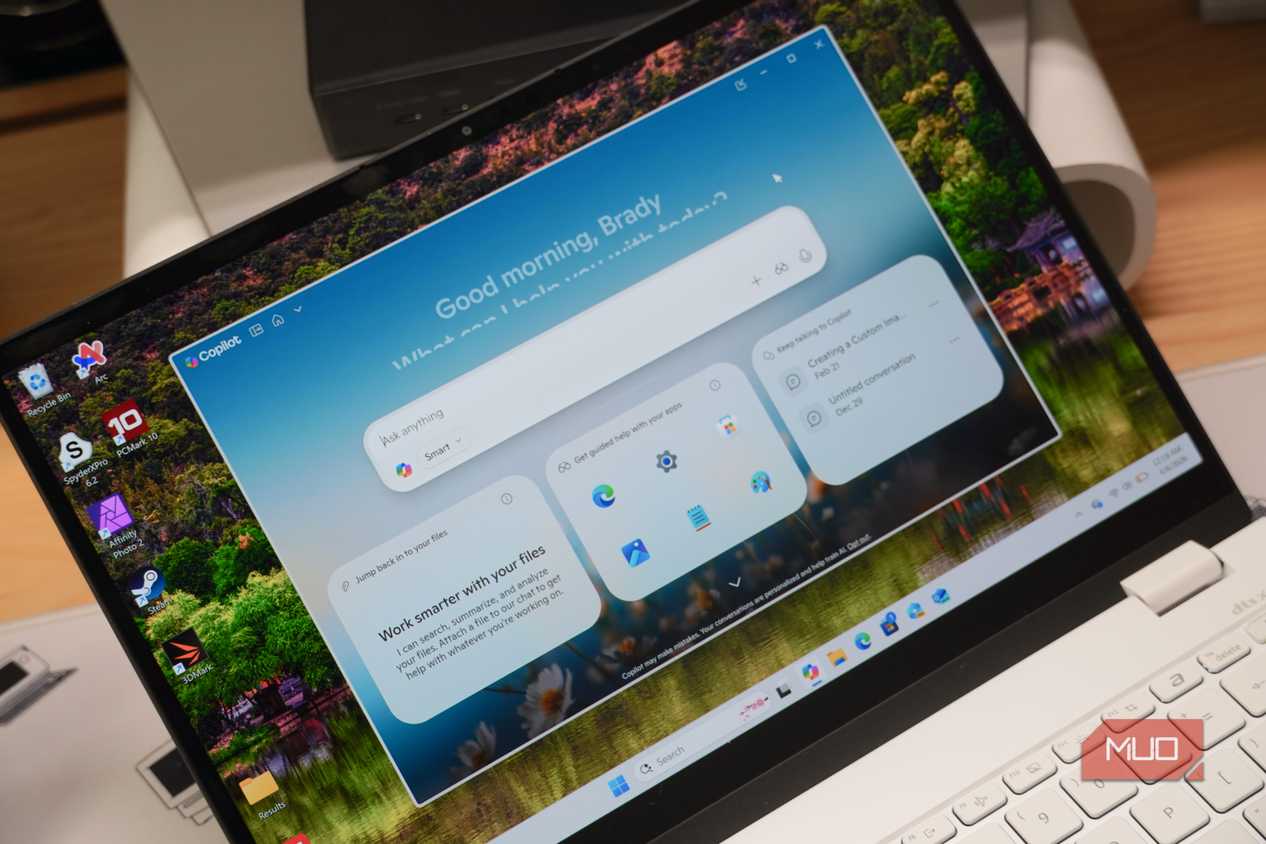
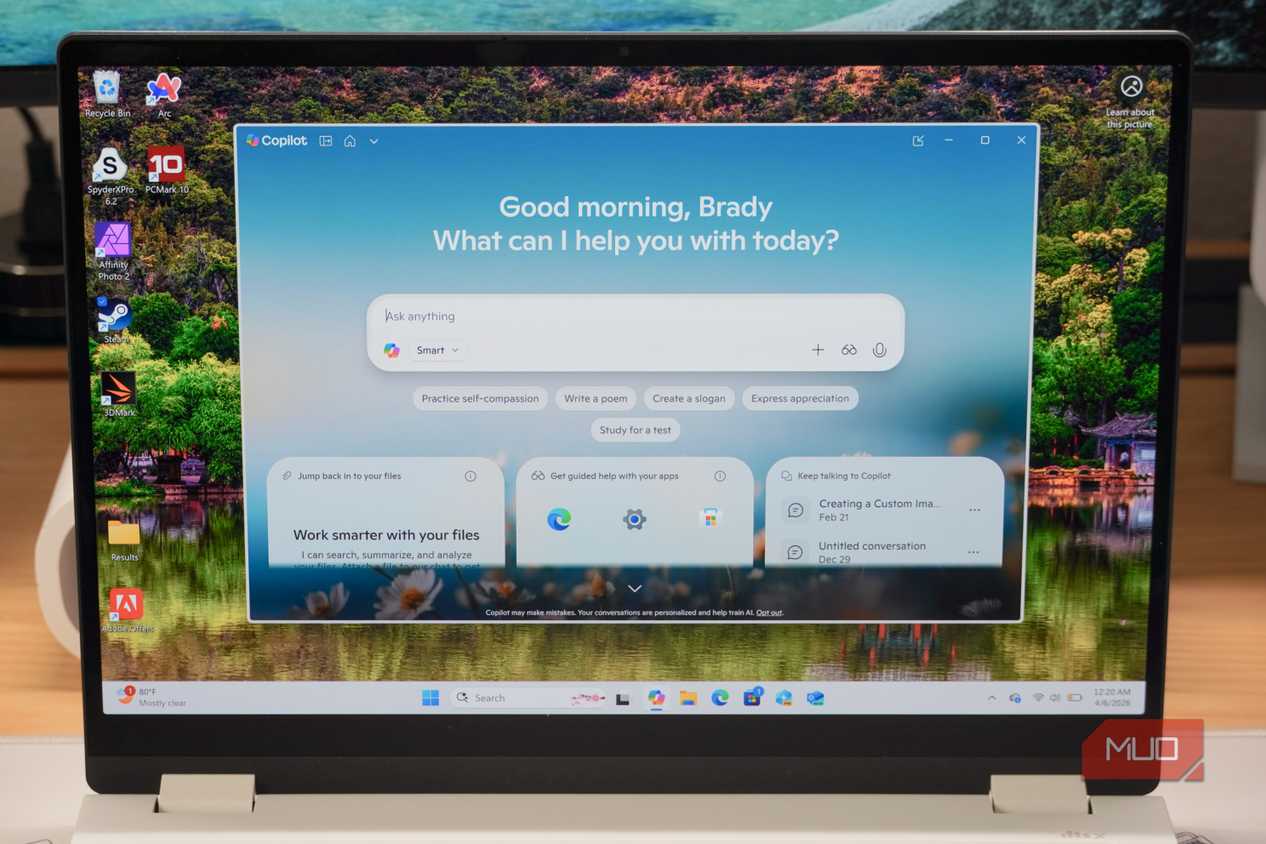
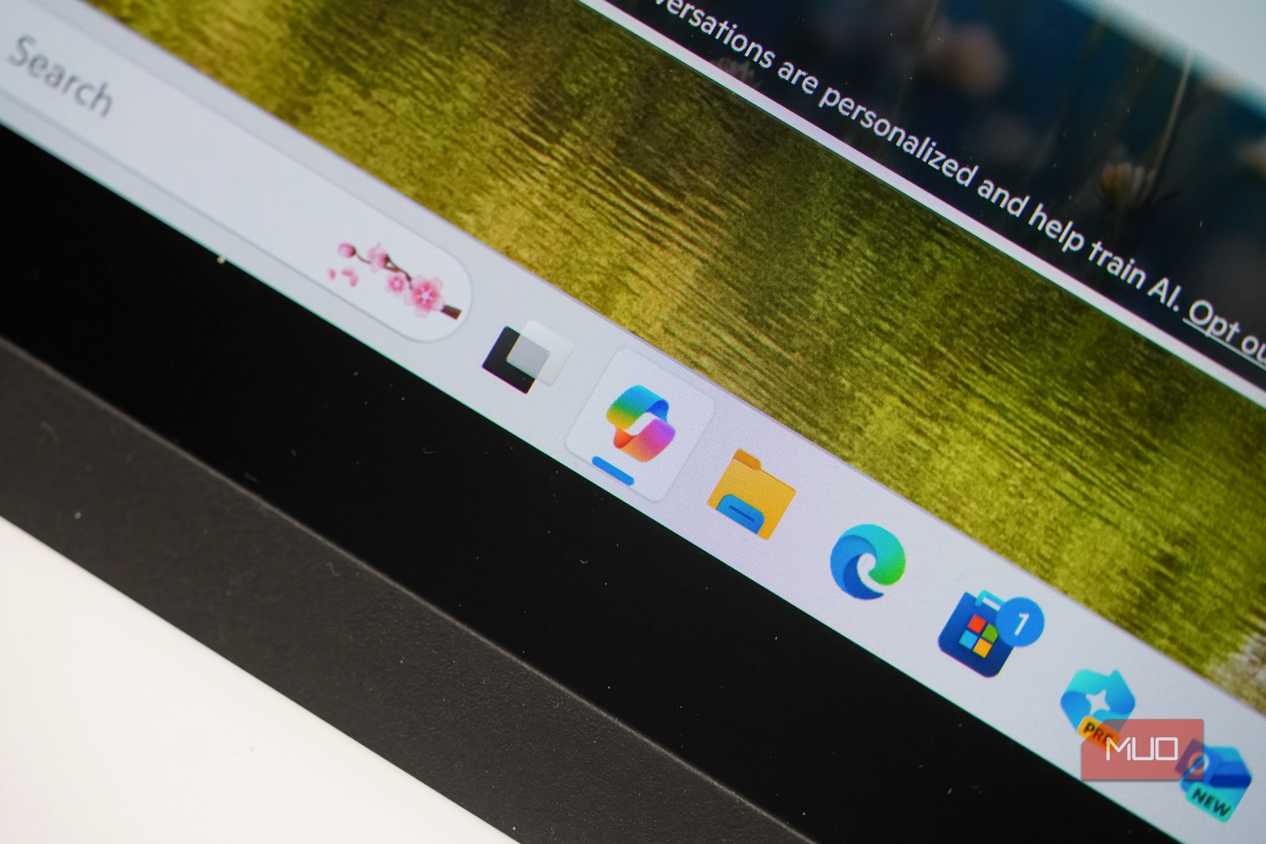
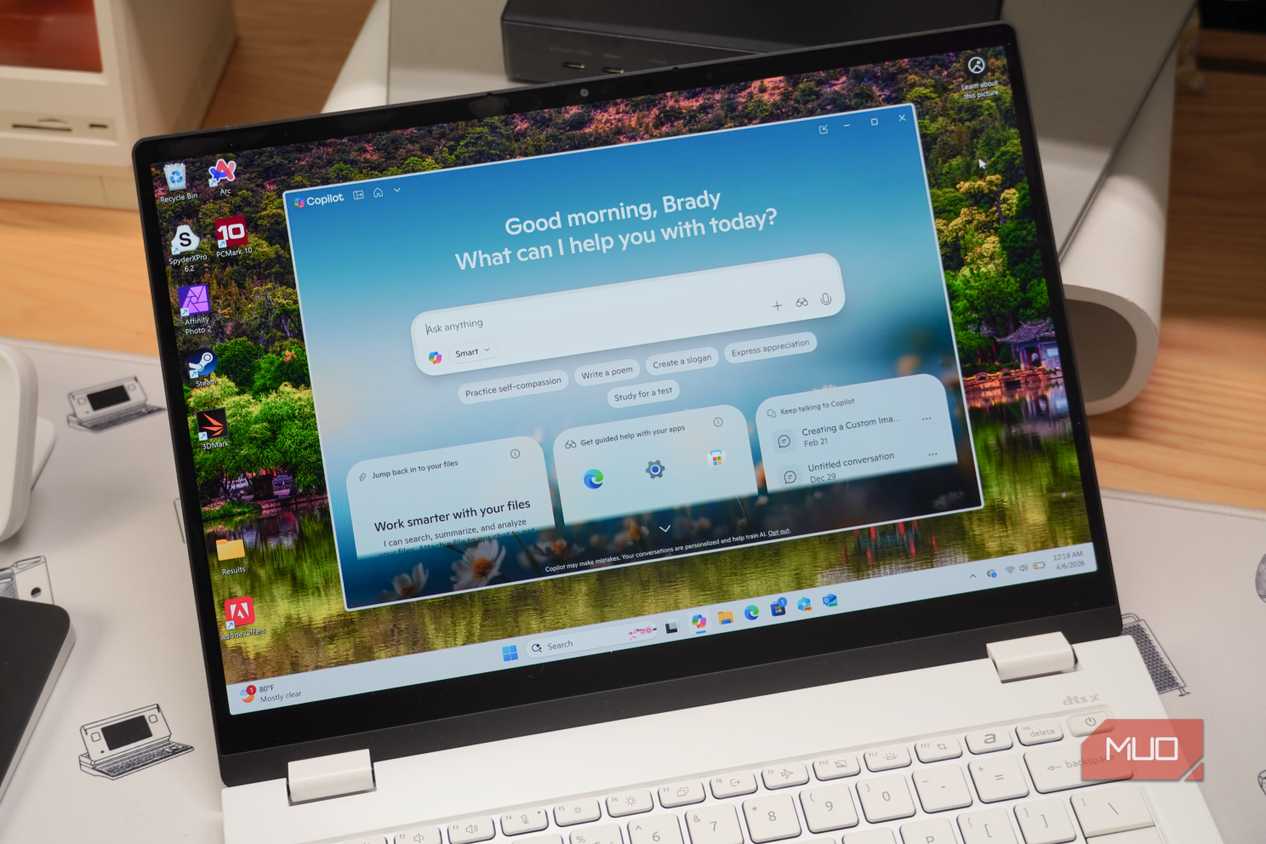
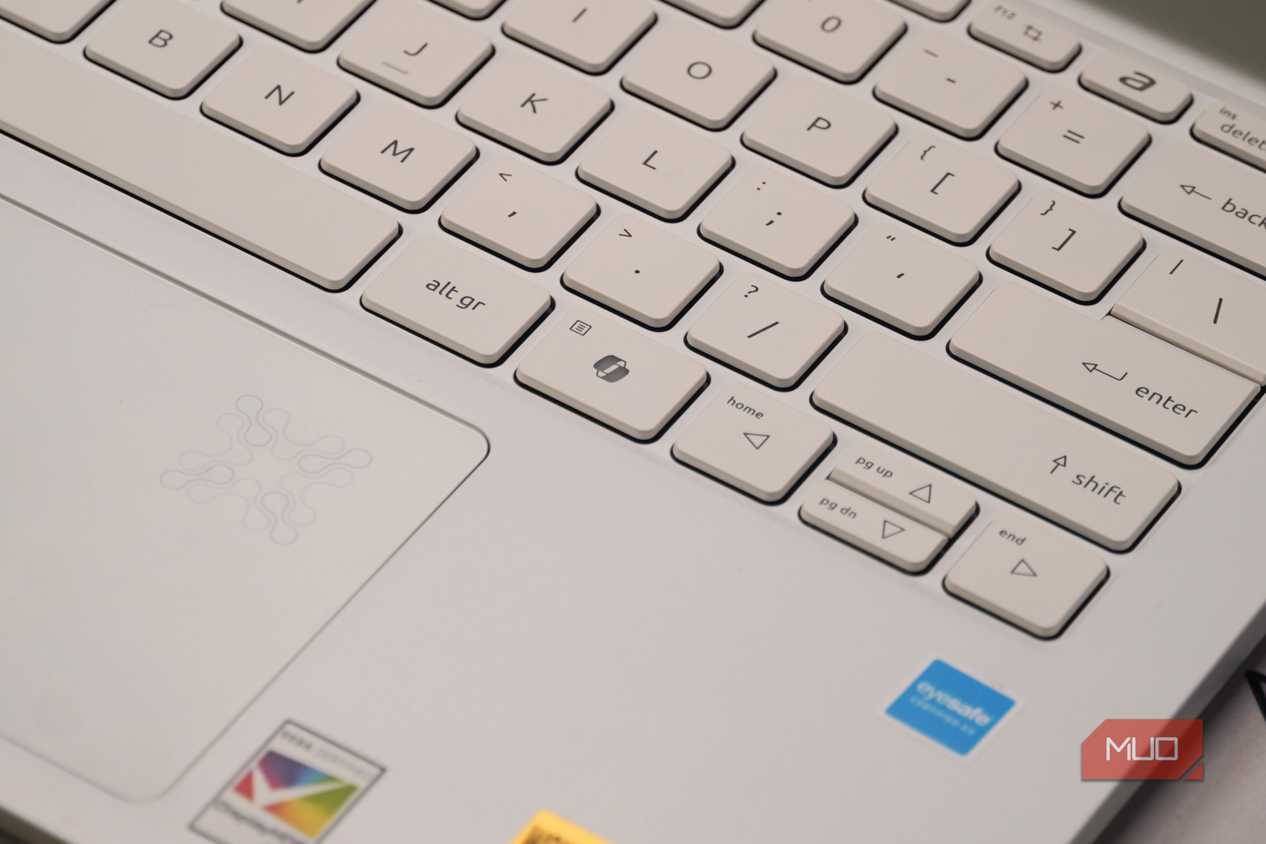
Like every other tech giant, Microsoft has been pushing its AI tools harder than anything else. It’s basically everywhere you look, from your keyboard to the taskbar to even default apps. I wouldn’t say it’s useless, but it sure does feel half-baked to most other AI tools out there.
Also, the Copilot app itself isn’t light either. It takes several gigabytes of storage and even uses RAM, regardless of whether you touch any of those AI features or not. The only silver lining is that Windows lets you remove Copilot completely, which is what I like to do when debloating. Similarly, if your PC has Recall, it can go too, unless you’re keen on Windows remembering everything you’re doing on your PC.
Windows Backup
Backup, as long as you stick to OneDrive

Backup is one of those things everyone takes seriously, and conveniently, Windows offers a dedicated tool for backing up everything that’s on your PC. The only catch is, you need to use OneDrive for it, and there’s no way to change that. So as someone who uses Google One for cloud storage, Windows Backup is useless to me. Instead, I’ve added Google Drive to File Explorer and use it to back up important data automatically.
Of course, I still need OneDrive to sync my settings and preferences across devices. But that barely takes any space and is already covered in OneDrive’s free quota.
Widgets
The most ignored Windows 11 feature


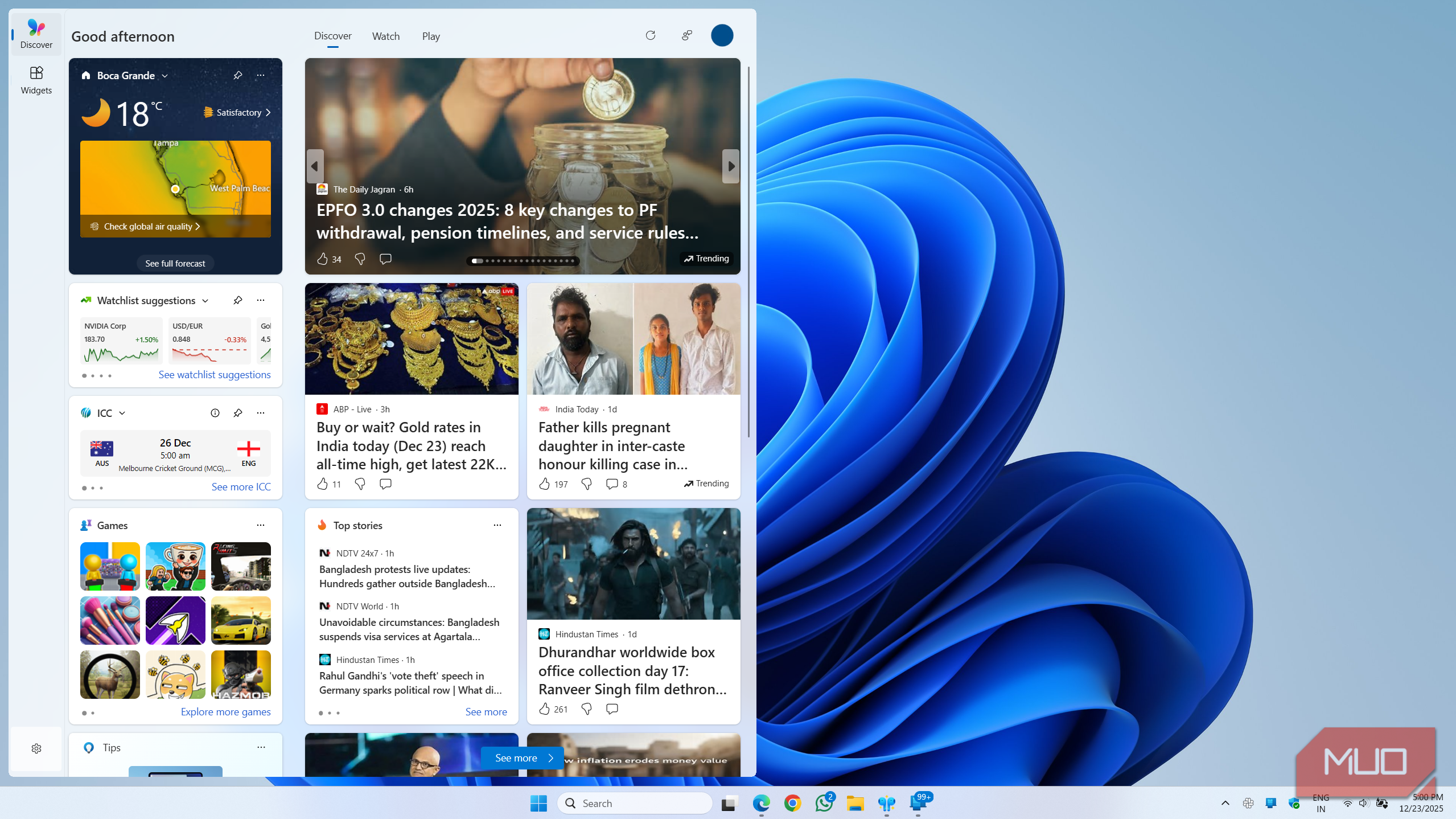
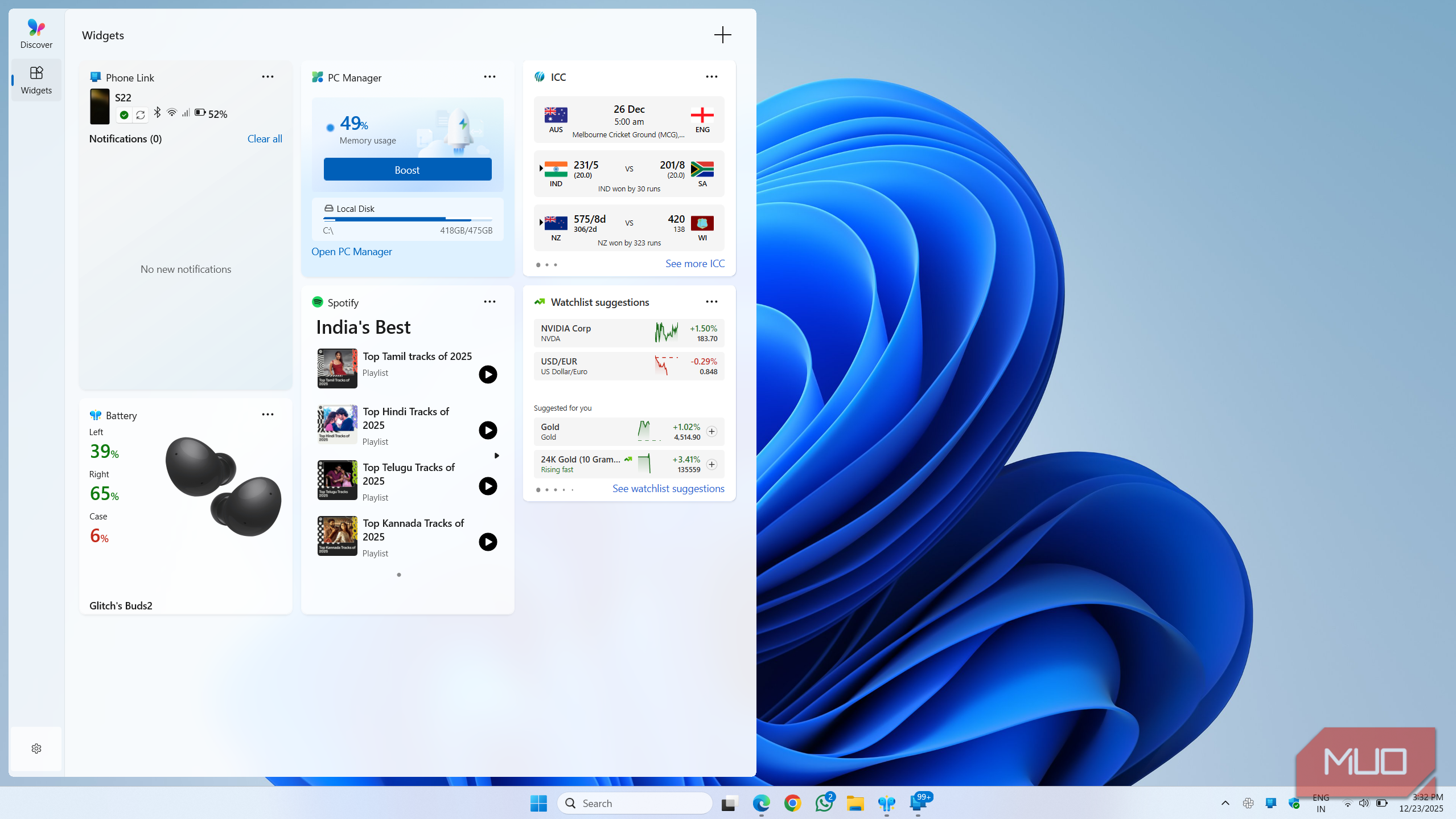
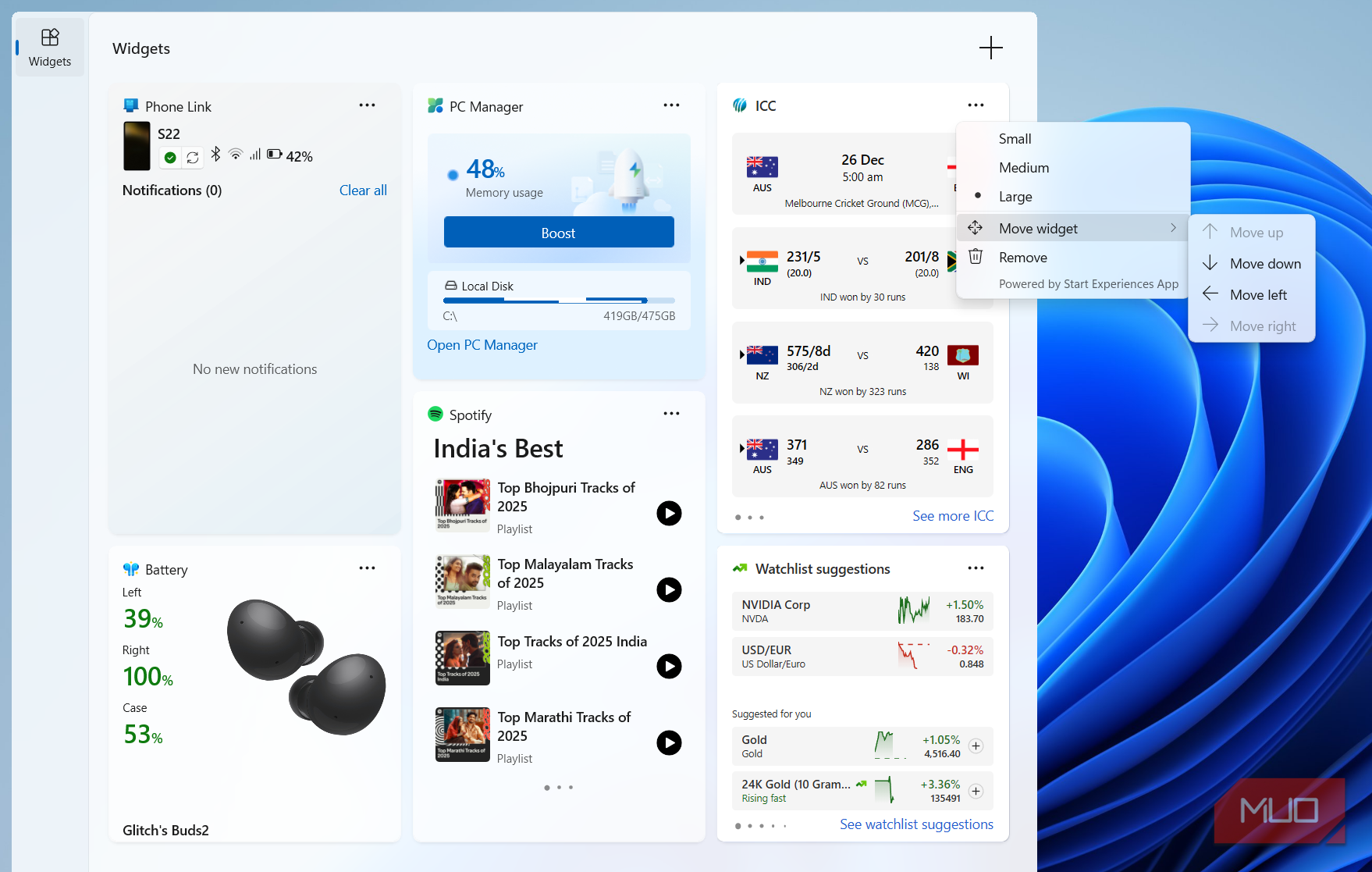
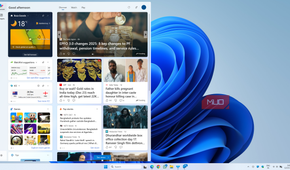
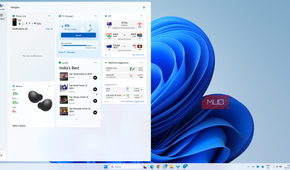
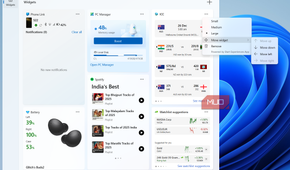
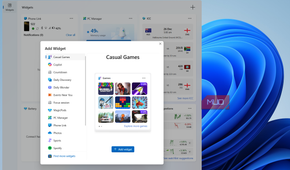
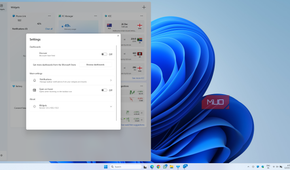
I think I say this for everyone: the Widgets panel has to be the most useless thing in Windows 11. And it’s not like they’re a new addition. It’s been several years and I still found a good reason to use it.
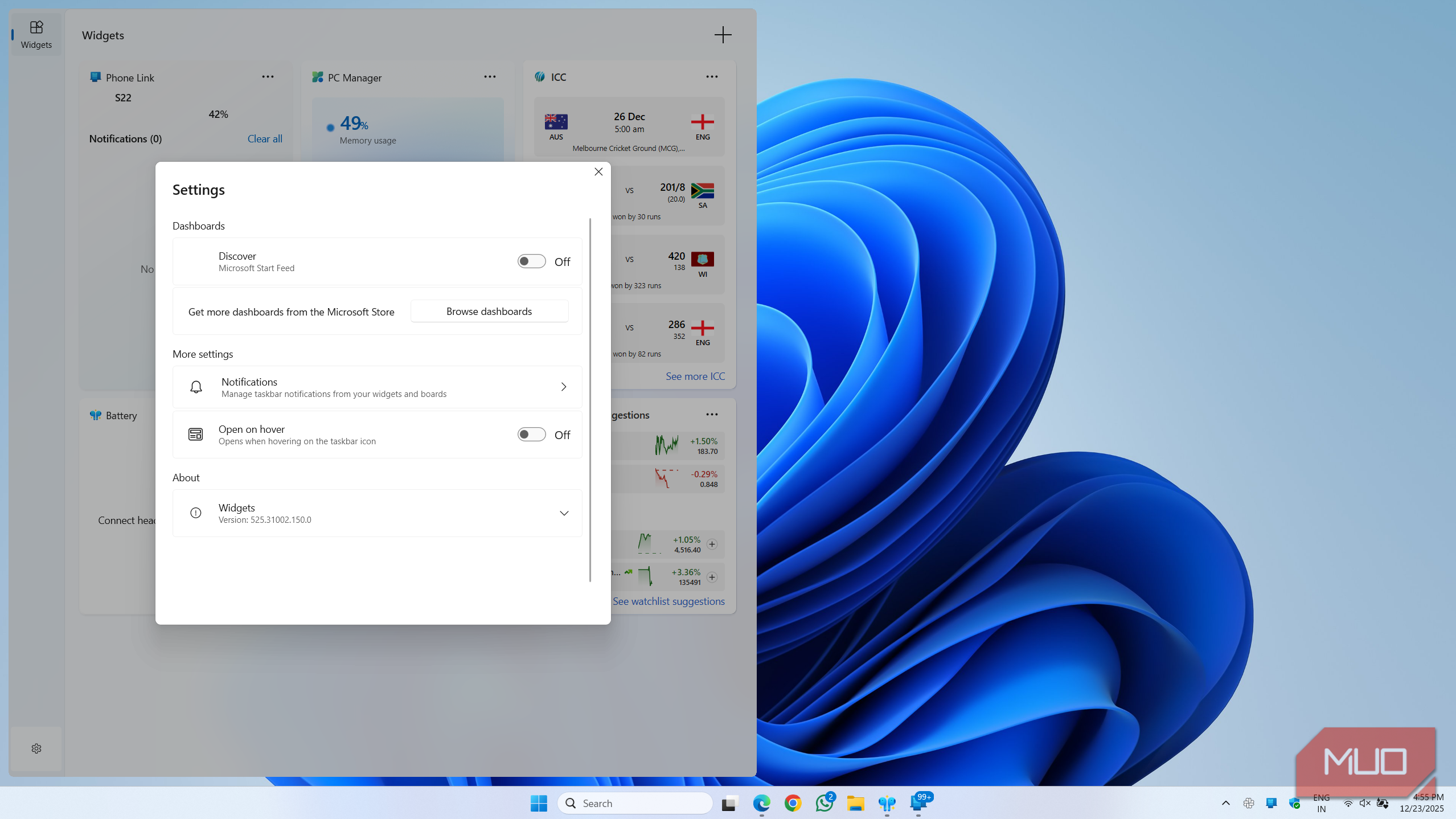
The biggest issue with it is the Microsoft Start Feed. It’s just not as good as Google Discover when it comes to suggesting relevant content. It’s mostly a stream of MSN headlines that feel more like clickbait and aren’t personalized well enough. Google Discover isn’t perfect either, but it at least gets better over time.
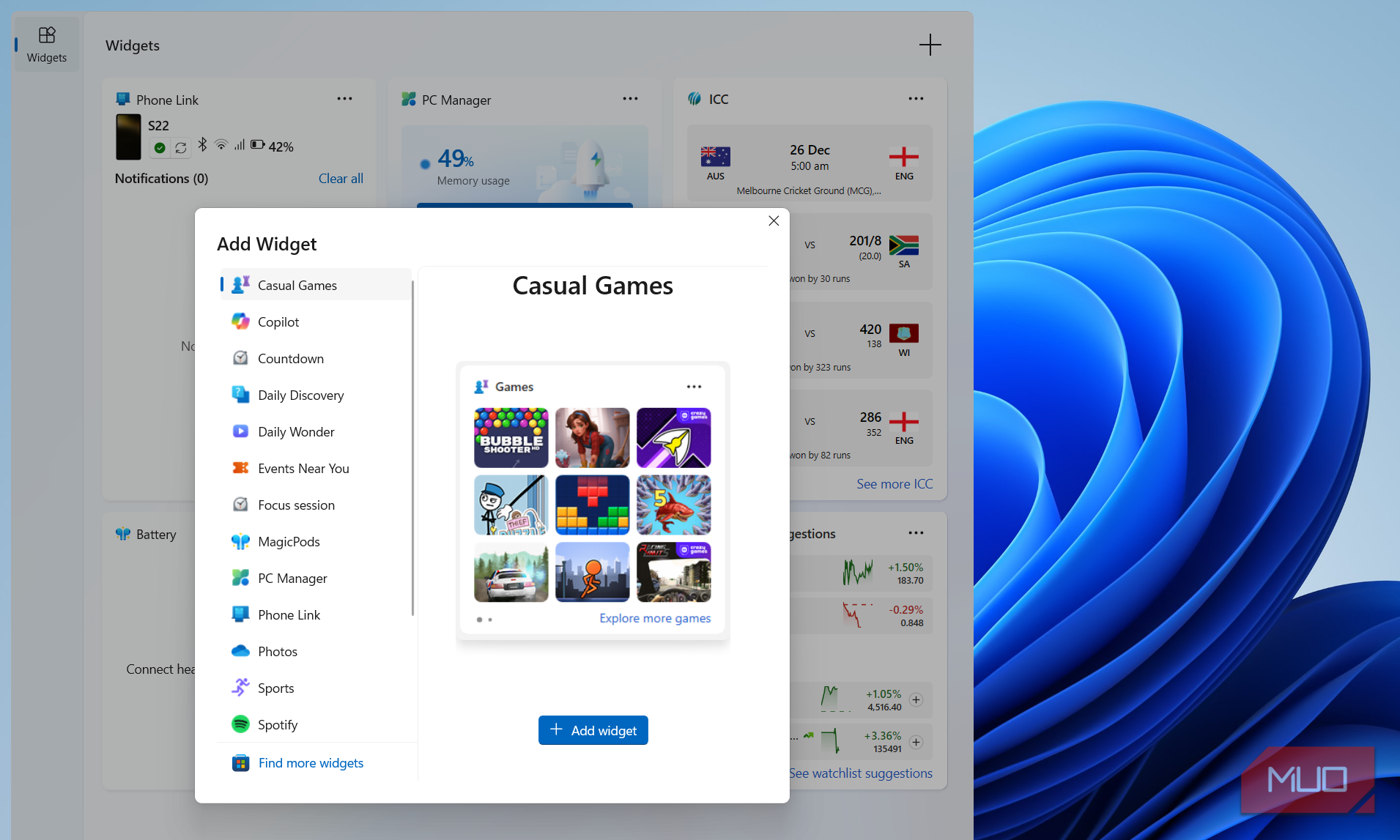
The other problem is the widgets themselves. There are just not enough choices available simply because nobody seems to care. There are a few stock widget options and only a handful of third-party apps.
The Start menu
It keeps getting worse somehow




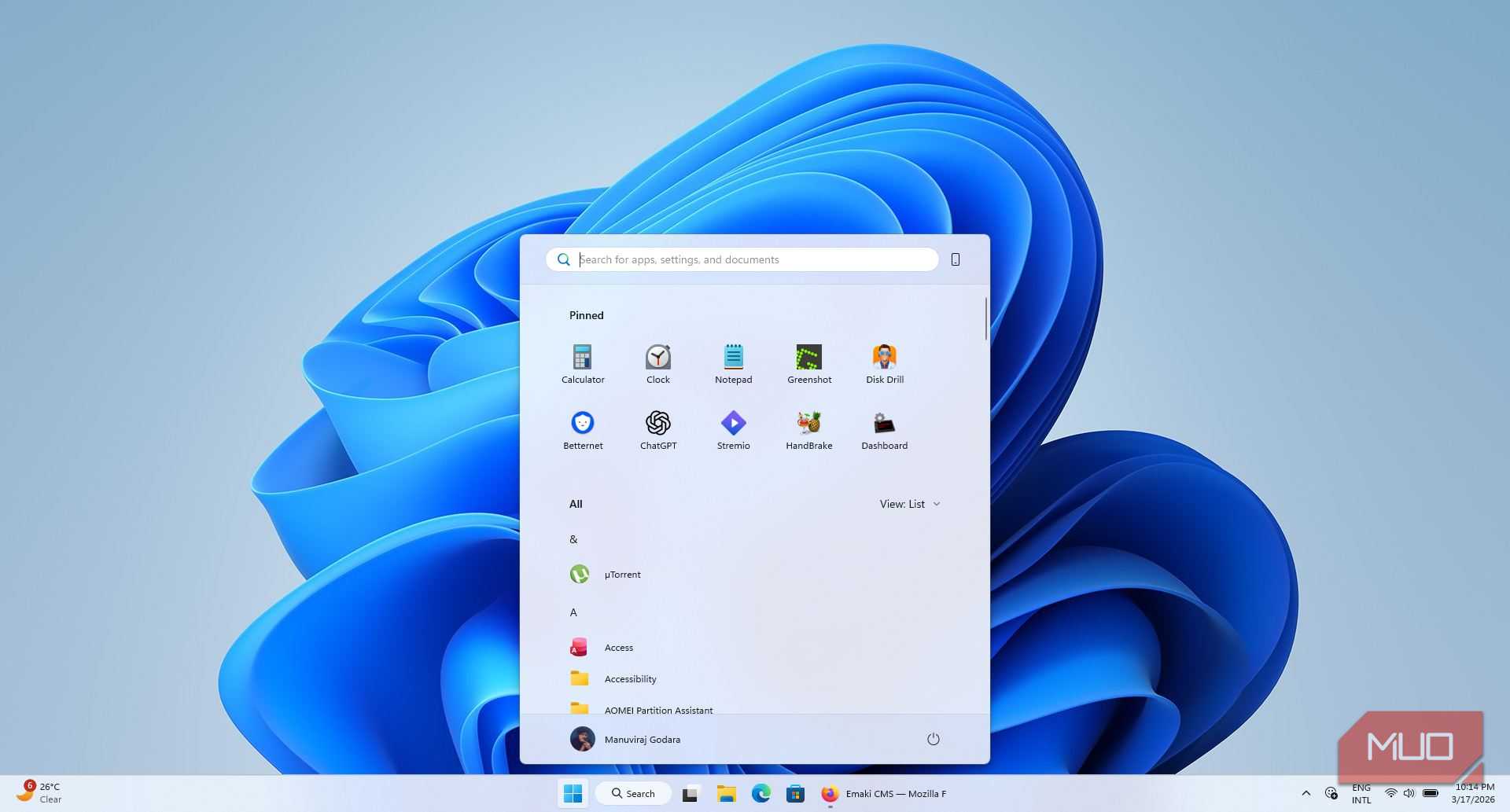
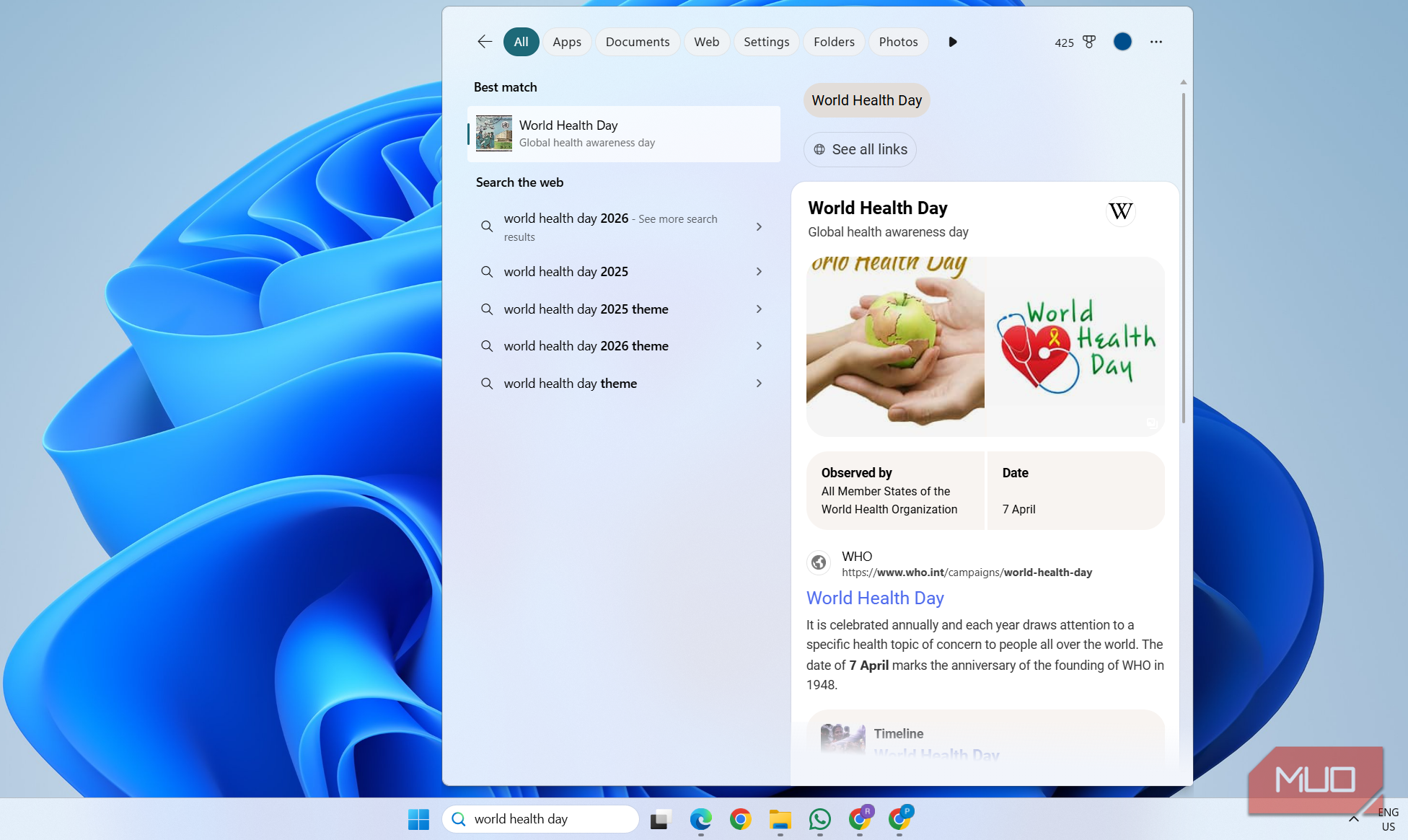
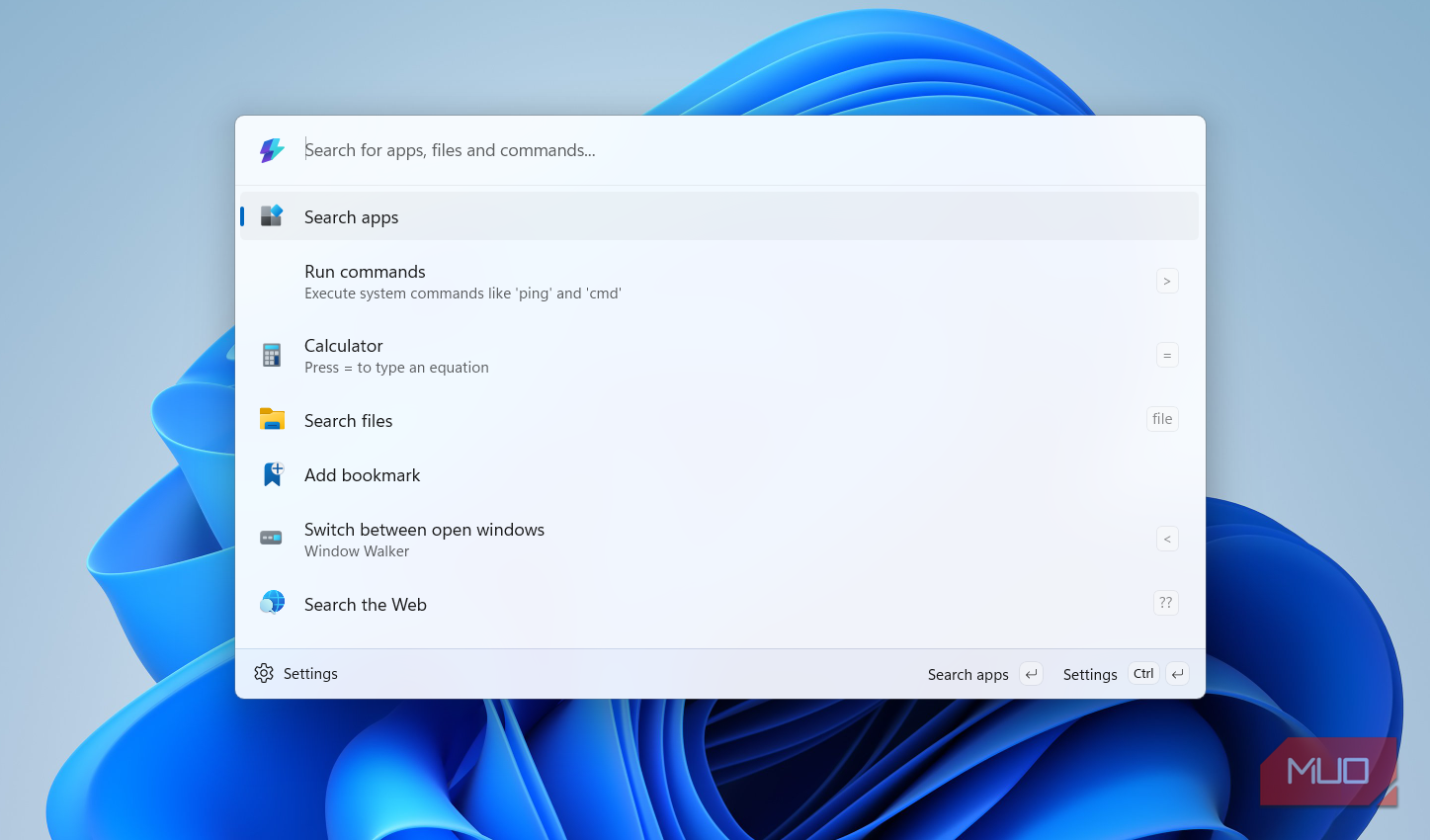
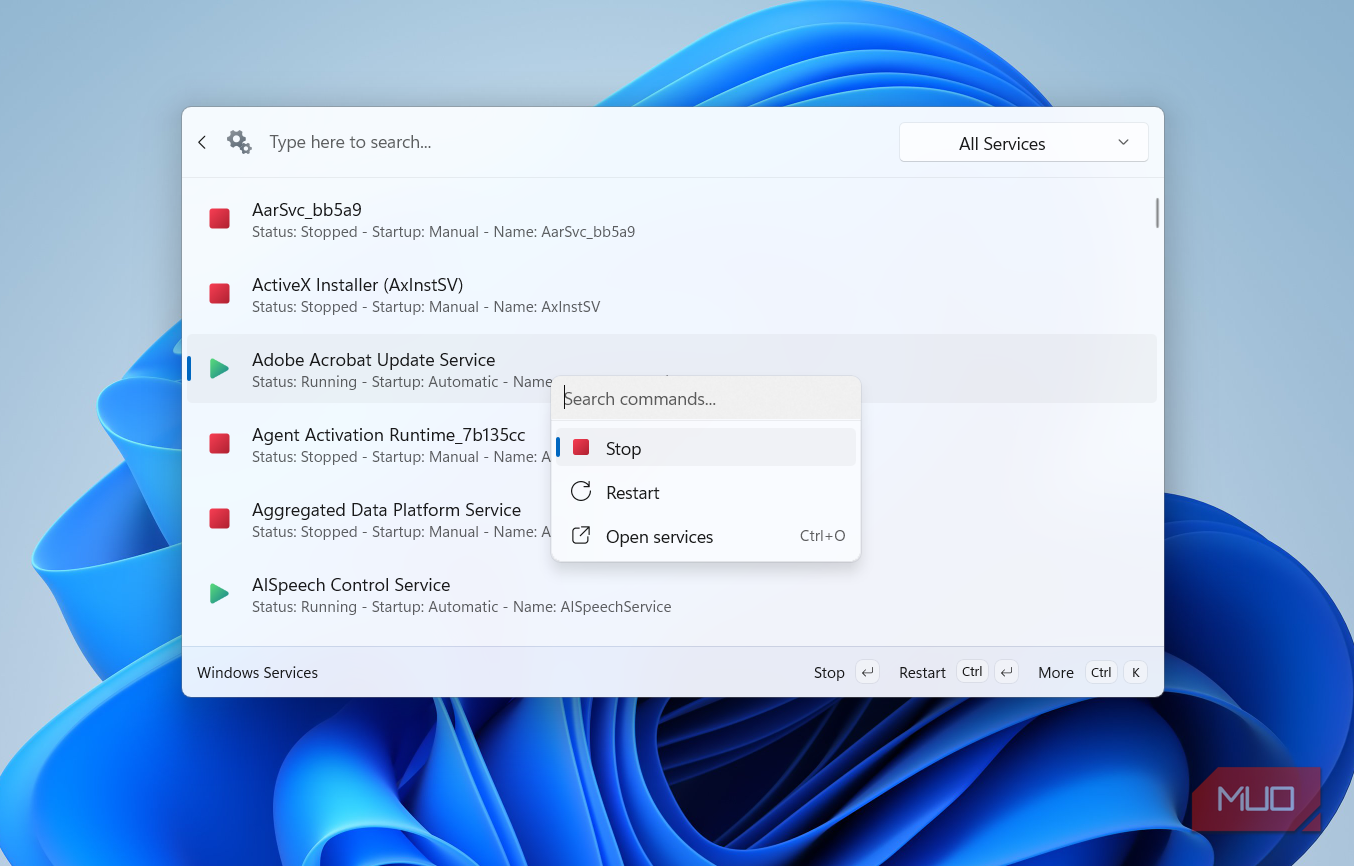
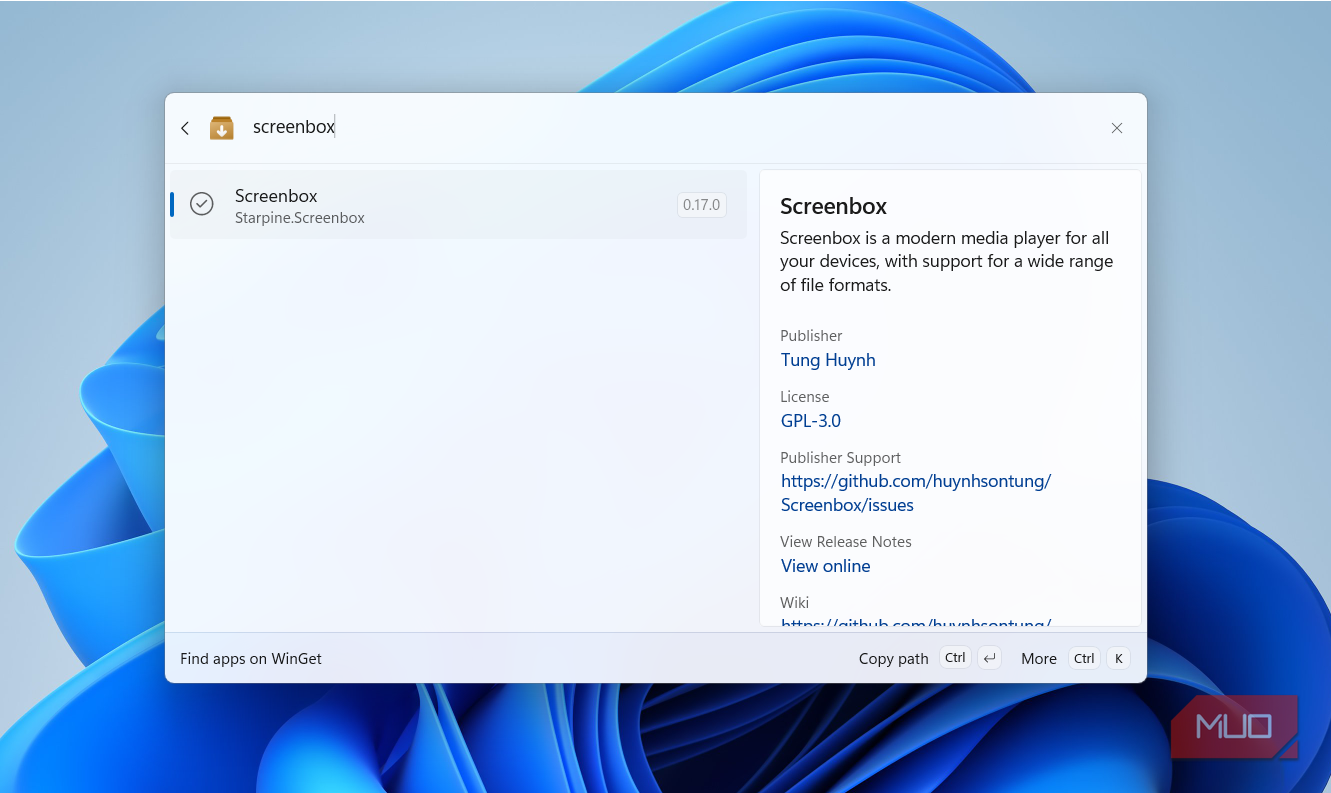
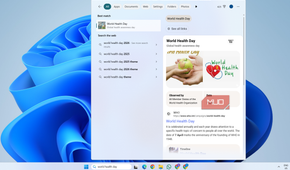
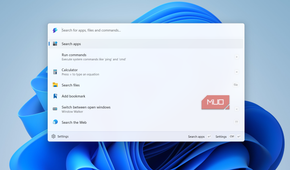
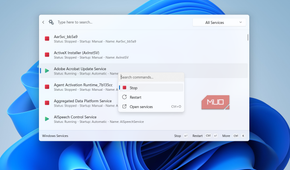
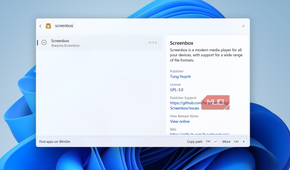
Windows 11 Start menu gets the job done, but there are just far too many annoyances with it. The Recommended section, Search Highlights, and even those web searches that always open in Bing, regardless of what browser you’ve set as default.
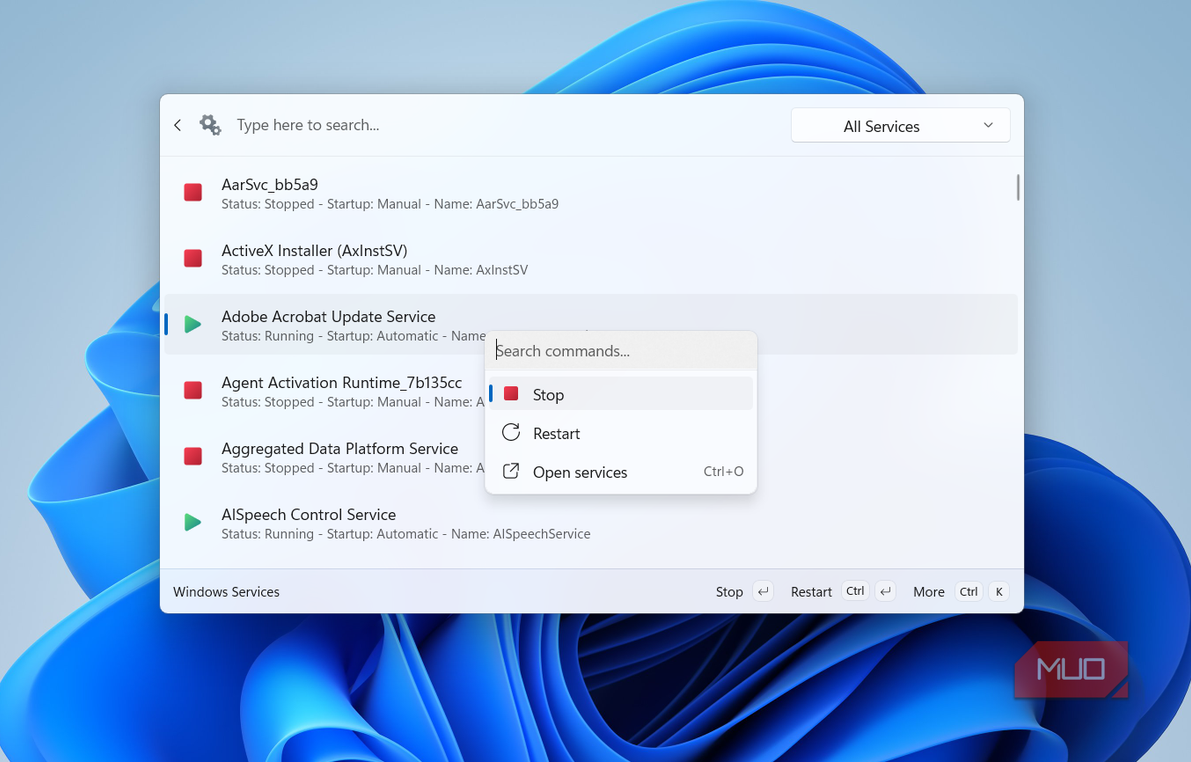
Unlike the widgets panel, Windows Start menu isn’t something you can easily ignore, not unless you replace it. The good news is, a better option is available and it comes from Microsoft itself. Heck, you might already have it installed. Yes, PowerToys’ Command Palette tool is the best Start menu alternative you can get. It’s a macOS-style launcher that lets you search for apps, run commands, find files, and even do web searches. It’s fancy, fast, and fun to use.
Press Win + Alt + Space and the launcher appears. You can even use it to search for open windows, see clipboard history, download apps, and do a lot more.
Delivery optimization
You won’t miss it

Delivery optimization is a feature that promises to make Windows updates faster and more reliable for everyone. The problem is how the feature actually works. It lets your Windows PC download update files from other machines on the same network and even those on the internet. In return, your PC also has to share parts of the updates it has to other PCs.
Security-wise, the feature is completely safe, but the problem is since your PC has to upload parts of the updates to others, it can increase the internet and CPU usage, sometimes at the worst possible time. Also, there’s no downside to disabling Delivery Optimization as your PC can still download updates from Microsoft’s servers directly.