


A perfectly fine SSD can fail at any time, and compared with old mechanical hard drives, it shows no obvious signs of failure. A failing SSD might look like a corrupt Windows installation, with frequent crashes and strange software issues that can disappear and reappear.
Sure, you can use tools to check an SSD's health, and the most common diagnostic is the SMART (Self-Monitoring, Analysis, and Reporting Technology) report, a collection of status logs that shows a drive's health. However, an SSD with 100% health can fail at any time, and the SMART report is hardly helpful for a sudden SSD failure.
A clean SMART report isn't a clean bill of health
A 100% health score doesn't mean much

Windows doesn't expose the SMART report for an SSD, so you'll need a third-party program like CrystalDiskInfo for a thorough analysis. The status log may look different across SSDs, depending on the controller and manufacturer.
However, you'll generally see an overall health status, which is CrystalDiskInfo's overall rating of the drive: Good, Caution, or Bad.
You'll also see other information such as temperature, power-on hours, power-on count, read/write info, remaining life, uncorrectable errors, integrity errors, unsafe shutdowns, and more.
Even though this is an extensive list of information to determine whether an SSD is in good condition, a drive with 100% health can still fail because other factors matter, and the SMART report is built to catch slow decay, not sudden death.
The SMART reporting blind spots
Controller failure and firmware bugs don't show up until too late
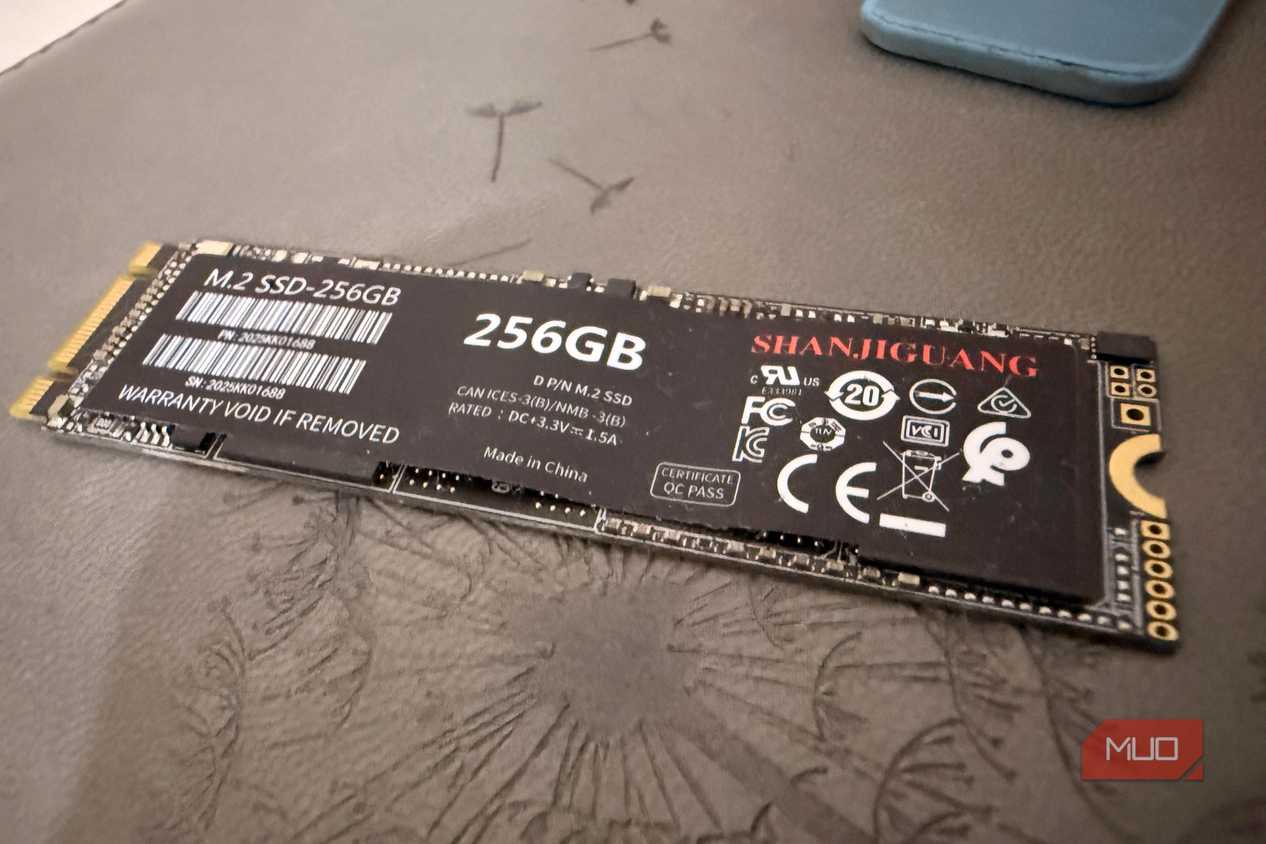
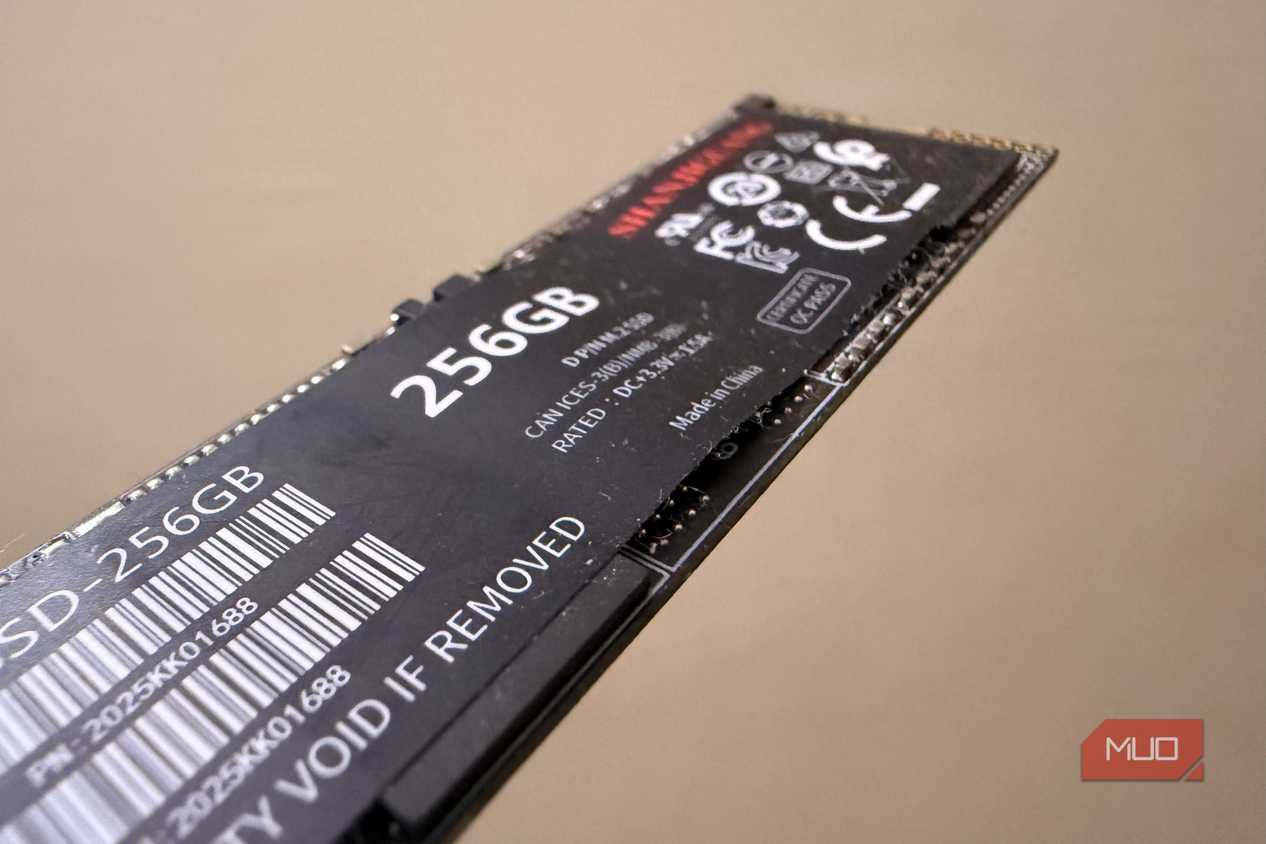
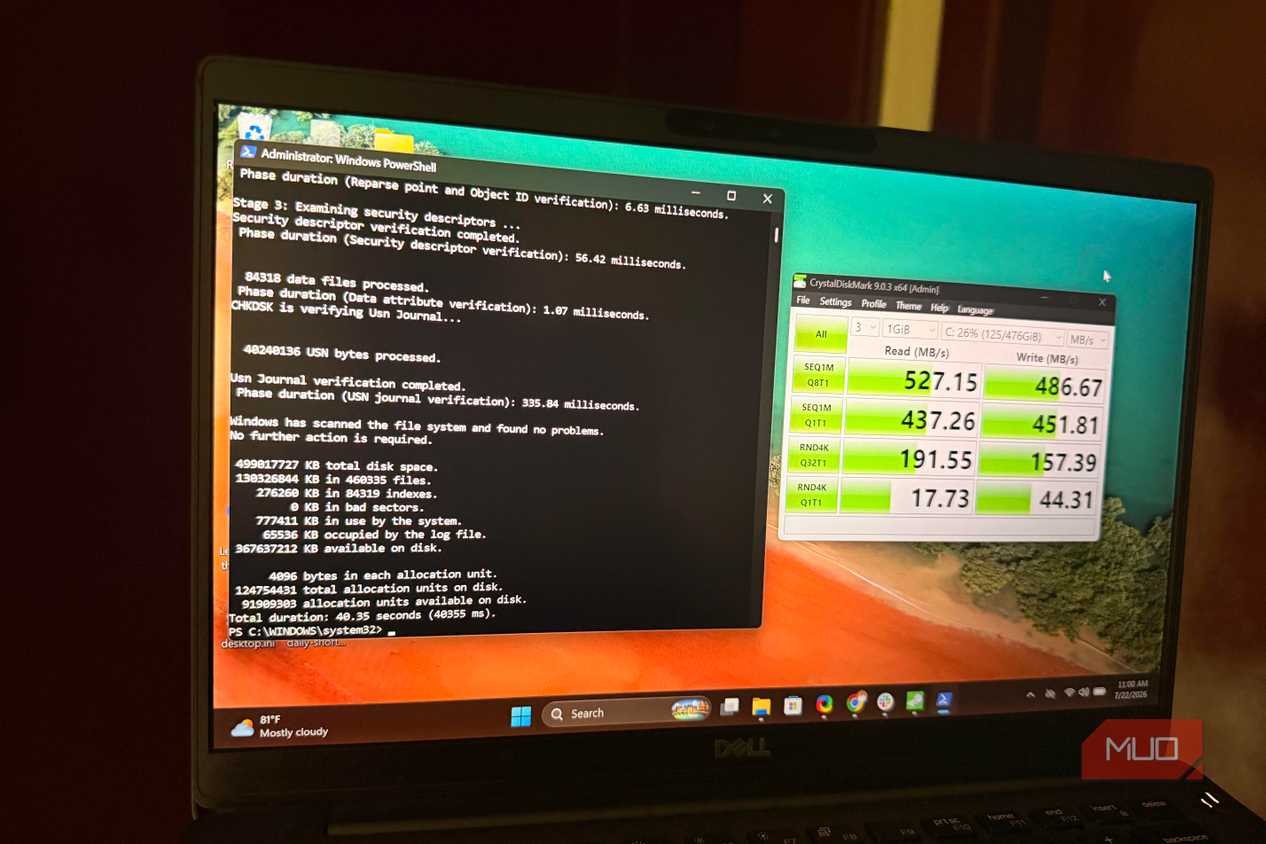
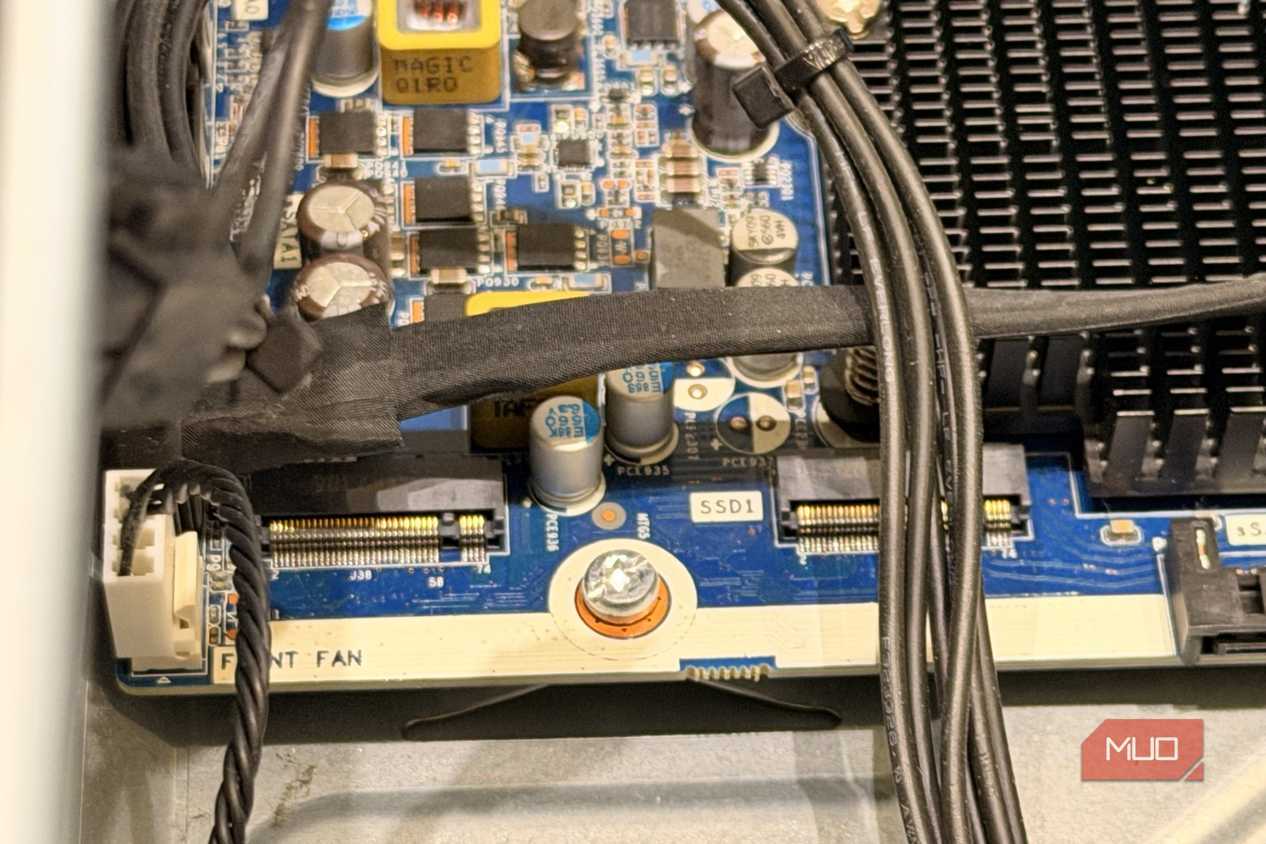
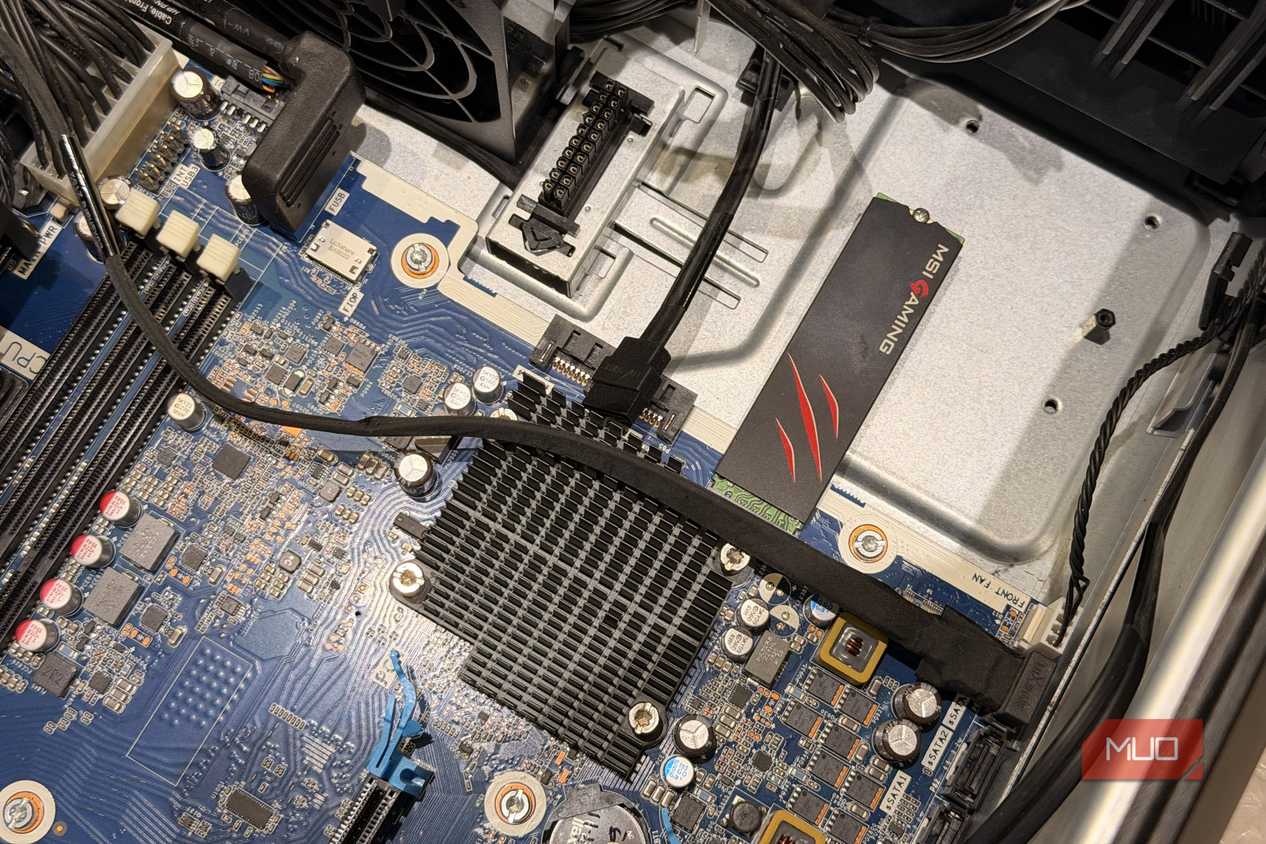


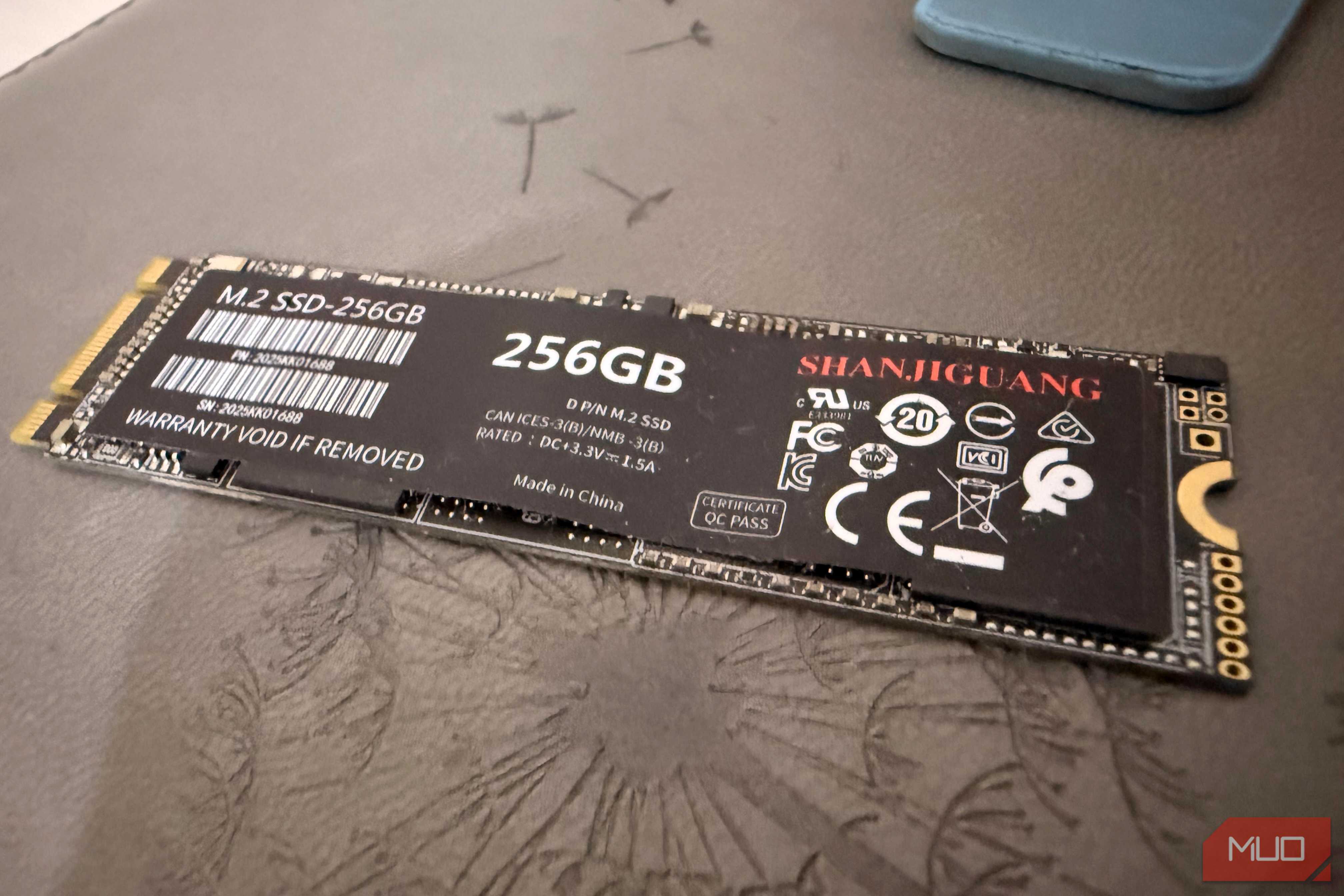
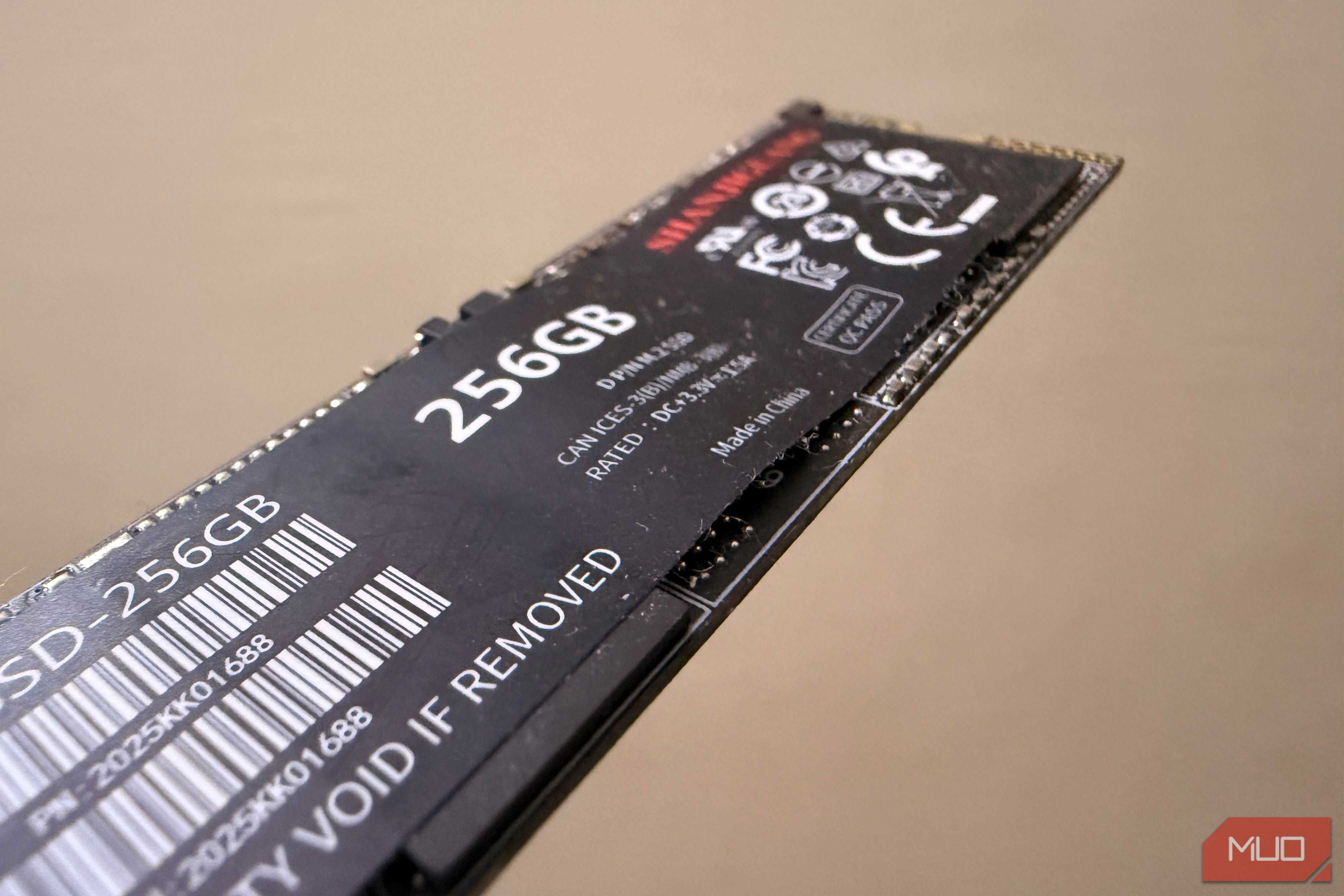
 Credit: Amir Bohlooli / MUO
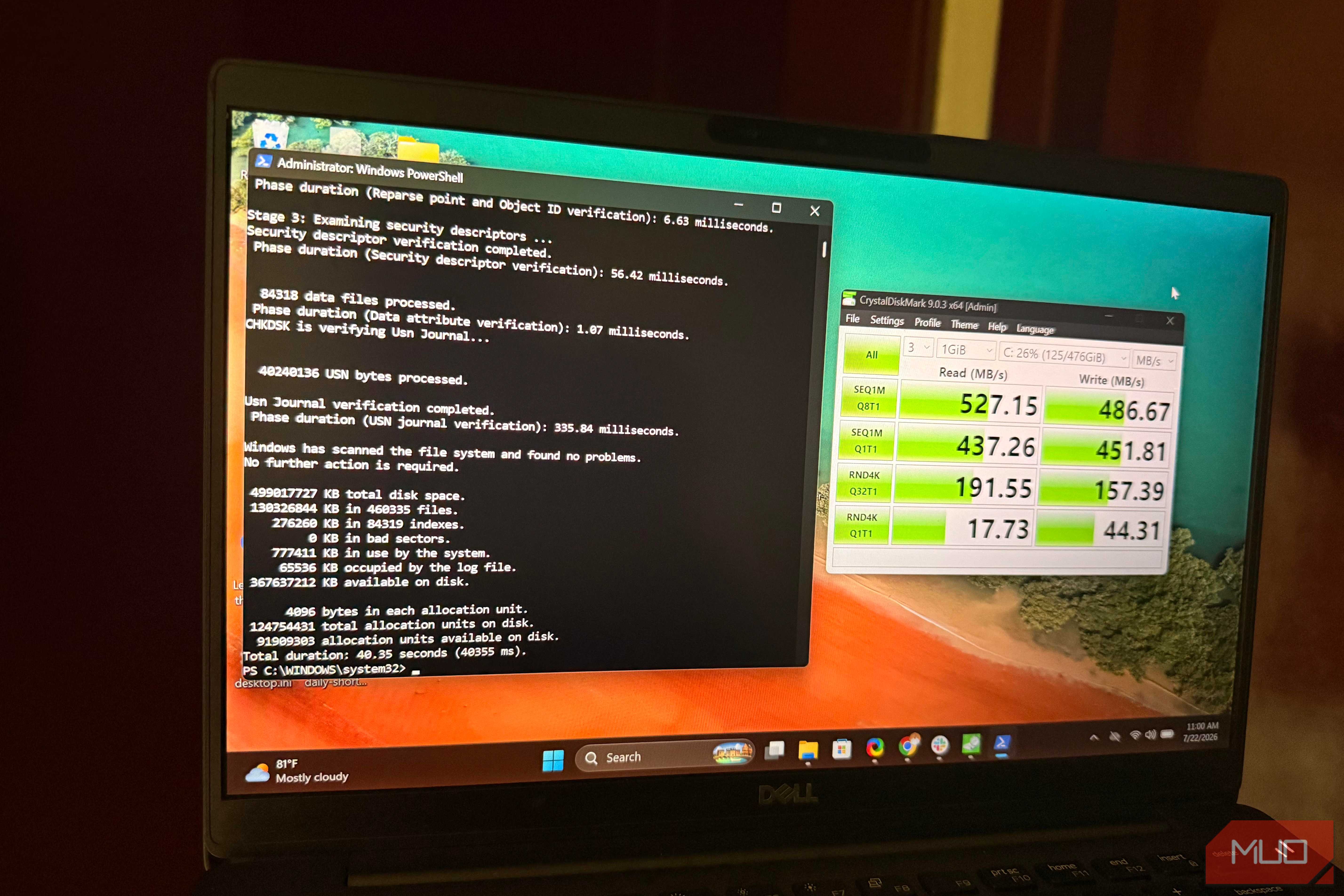
 Credit: Amir Bohlooli / MUO
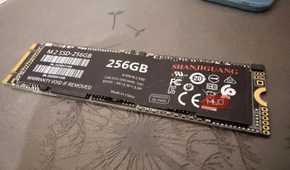
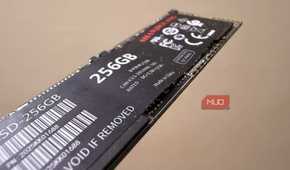
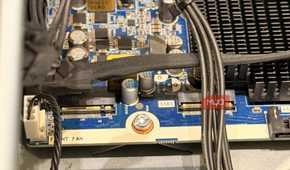
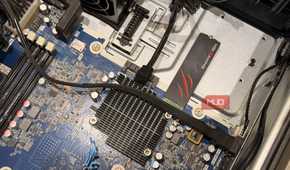
An SSD has several components beyond the NAND flash, and the controller is the drive's processor, acting like the brain that manages data flow to the computer. The controller handles the NAND itself, power management, wear leveling, cache and block management, and nearly every other task the SSD needs.
However, a SMART report can't predict a failing controller, which can happen suddenly. Common signs of failure include the drive showing incorrect capacity, I/O errors, increased latency, inconsistent read/write operations, and similar symptoms.
Beyond that, corrupt firmware can also cause a drive to fail completely and can wipe out all data. In some cases, the NAND may still have that data because the firmware may incorrectly modify or remove the mapping table; in other cases, a firmware bug may destroy the data completely.
Your SSD doesn't always fail completely, and in some cases, like power cuts, your data can be corrupted if the write isn't fully committed before the power drops.
Also, although SSDs are purely electronic and less prone to physical damage than HDDs, they're not completely immune. Drops and impacts can damage the SSD, especially the controller, and can also cause solder joint fractures or PCB damage.
SMART isn't useless, but here's how to test what it can't see
Load catching, and Event Viewer will catch what a health score can't

I don't mean a SMART report is useless; it still gives you the overall drive status, but it misses a few areas, and that's not really a flaw. You should get frequent SMART reports for your drive, every month or so, to check the NAND health, since that matters too, and a deteriorating drive isn't something to be trusted when storing important data.
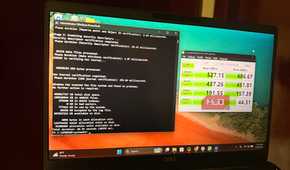
For a more comprehensive test, check the drive's actual performance. A short benchmark won't work, since you would need to test the SSD under load with the SLC cache filled and emptied to notice a performance drop, whether the drive freezes, runs hot, or throws errors.
Other than that, if you think you've experienced an SSD-related issue recently, check Windows Event Viewer for storage-related issues by searching for keywords like disk, stornvme, storahci, NTFS, controller resets, and I/O errors to confirm any suspicions.
If you have important data on your SSD and it's working properly, I recommend avoiding frequent stress testing, since it shortens its lifespan and can cause issues under load. Even if it's not working right, a stress test can fail it completely, so I suggest cloning it before testing.
A backup is the actual safety net
The 3-2-1 rule covers you even when the drive doesn't

Storing important data on just a single drive doesn't guarantee safety, and as I've mentioned before, a drive, no matter how good or new, can fail all of a sudden due to reasons beyond your control. In this case, a backup helps, and knowing you have a secure copy you can access if the main drive fails will be comforting.
For backups, I recommend the 3-2-1 rule: keep 3 total copies of your data: 2 backups on physical media (e.g., your main drive and a USB flash drive or another SSD) and 1 off-site. The off-site copy would be in a cloud storage account like OneDrive or Google Drive, acting as a safety net if both physical drives fail or a natural disaster occurs.
It can also be convenient when you need to access your files on the go, since retrieving them from the cloud is much easier than carrying drives and risking damage or loss.
A clean SMART report is a starting point, not proof
NAND prices are through the roof, and buying new SSDs is quite draining on the bank account these days. However, losing your data would cost you more, and I went through a similar situation a few years ago, trusting my drive's SMART score while my SSD's controller was acting up.
While I was able to recover my data, there was a small chance I wouldn't have, and that would mean losing years of memories and hours of hard work.
A failing SSD is harder to spot than a hard drive. Even brand-new drives can suddenly stop working, sometimes because of firmware issues, and that alone should be enough reason to always back up your data and conduct different tests on your drives rather than trusting the overall health.