


Totaling my grocery spending took one SUMIF and about ten seconds. Conditional totals sit behind most of the Excel features I lean on every single day, so that formula gets a lot of use in my expense tracker.
Then I wanted the credit card share of the same grocery total, and SUMIF ran out of room. It accepts a criteria range, one criterion, and an optional sum range, and that is the entire function. SUMIFS has supported multiple conditions since Excel 2007, and dates are where the gap between them gets much wider.
SUMIFS takes multiple criteria in a single formula
Category and payment method in one line, with no helper column


The switch requires one adjustment, and it is worth naming before anything else. SUMIF puts the sum range last and treats it as optional. SUMIFS puts it first and requires it. Everything after that opening argument is a criteria range paired with a criterion, and Excel accepts up to 127 of those pairs.
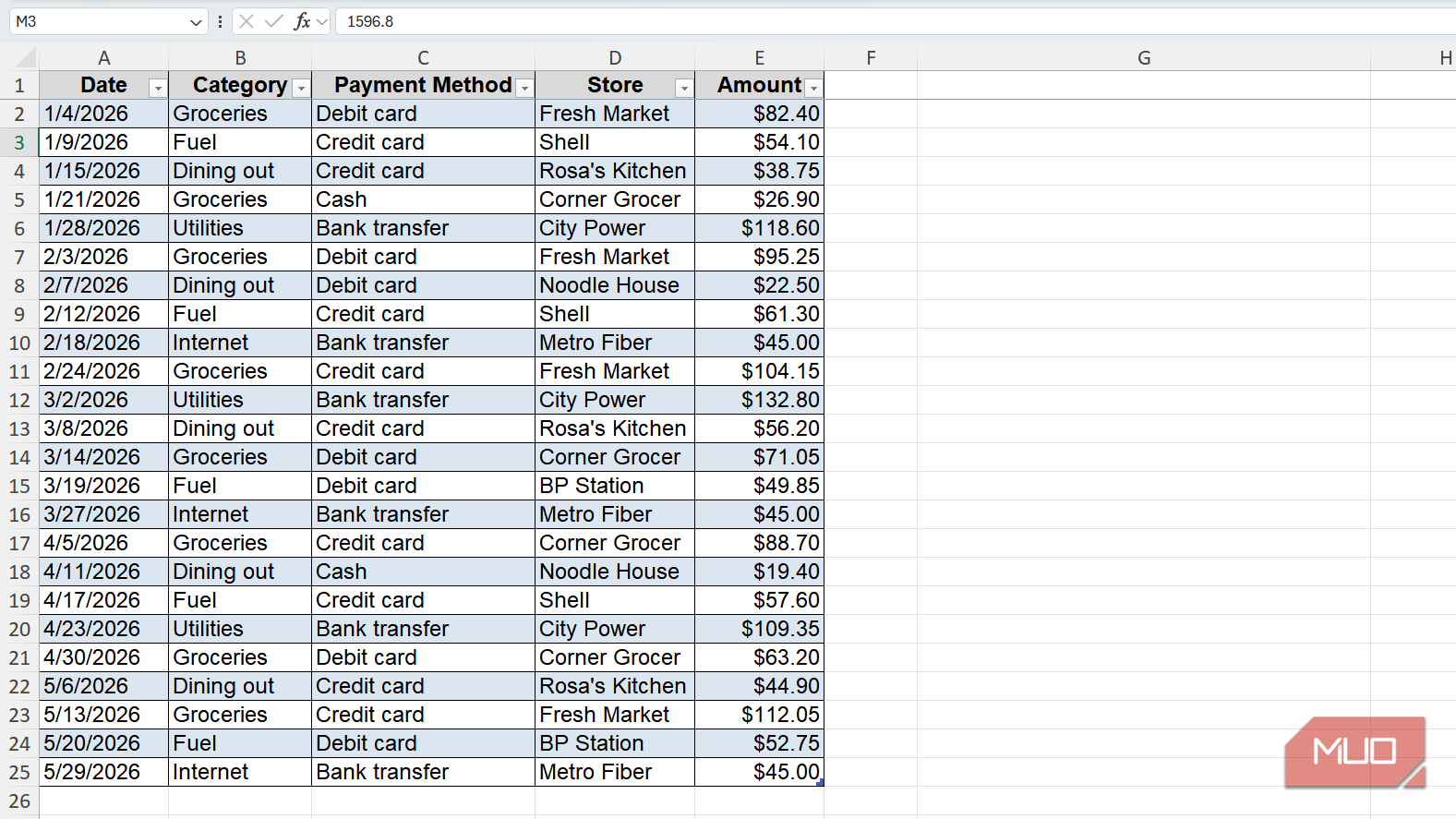
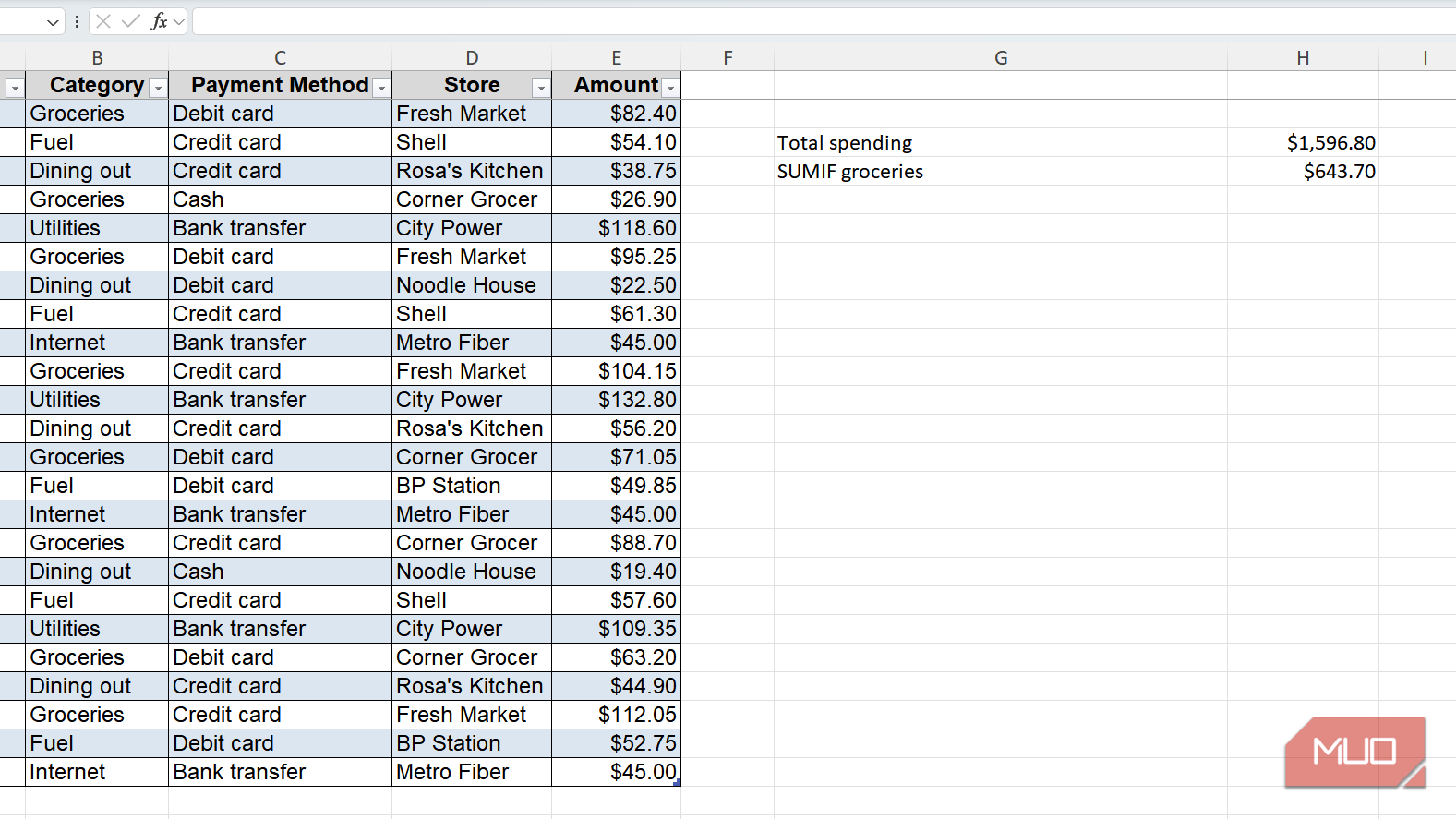
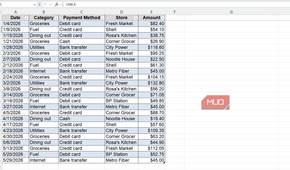
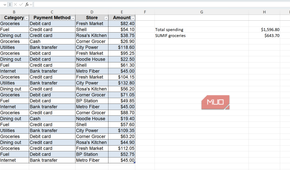
My expense tracker runs five columns across 24 rows, covering the date, category, payment method, store, and amount of everything I spent between January and May in 2026. Groceries alone come to $643.70. Here is how I split that figure by payment method:
- Select the cell for your total and type the function name.
- Set the sum range to the Amount column, because SUMIFS wants the numbers you are adding before it wants any conditions.
- Add the first pair, the Category column followed by "Groceries."
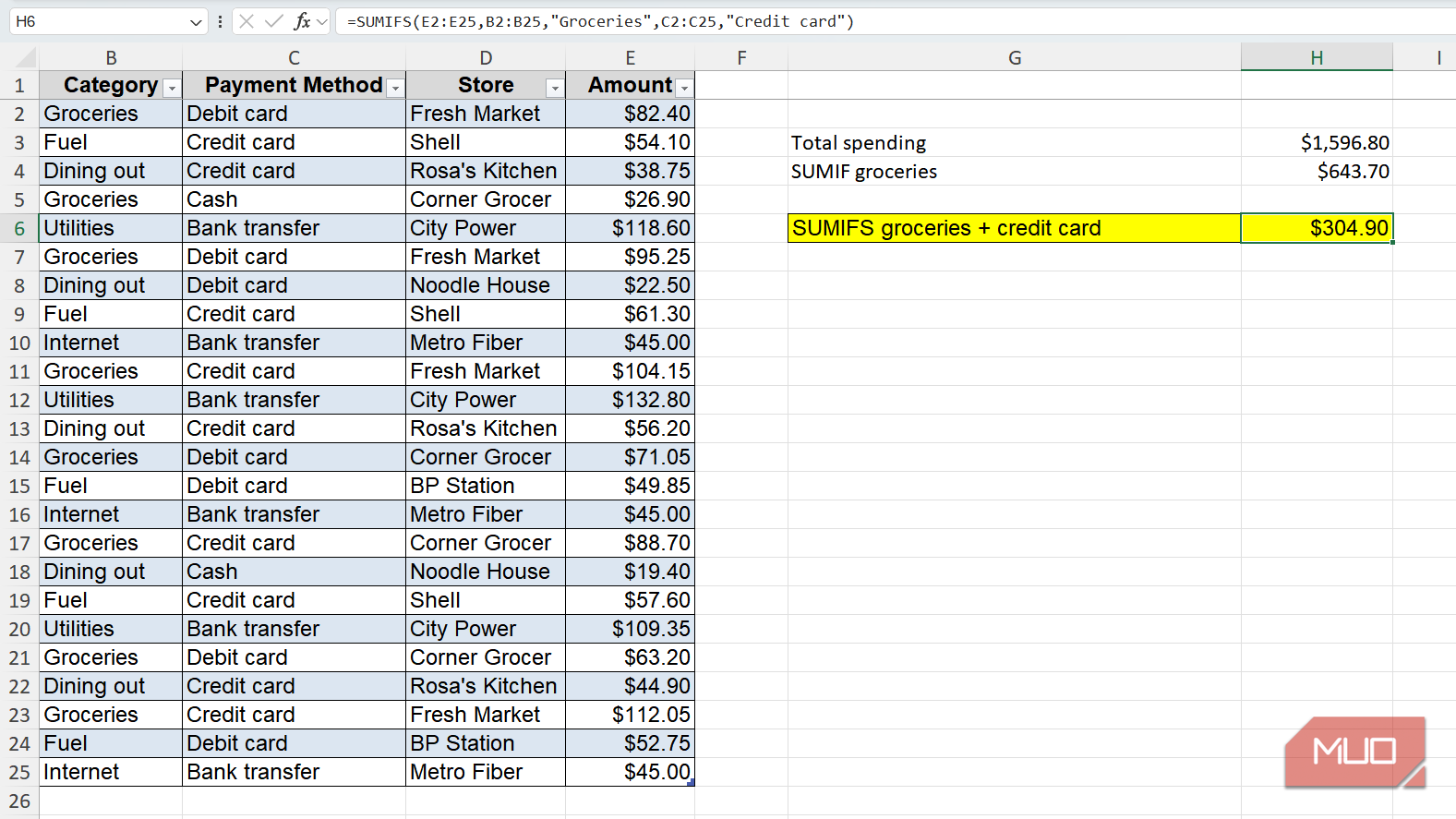
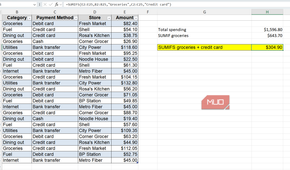
- Add the second pair, the Payment Method column followed by "Credit card."
- Close the parentheses and check the result against a filtered view of the same two conditions.
The finished formula reads =SUMIFS(E2:E25,B2:B25,"Groceries",C2:C25,"Credit card") and returns $304.90. That is a little under half my grocery spending, and I got there without a helper column or a nested formula.
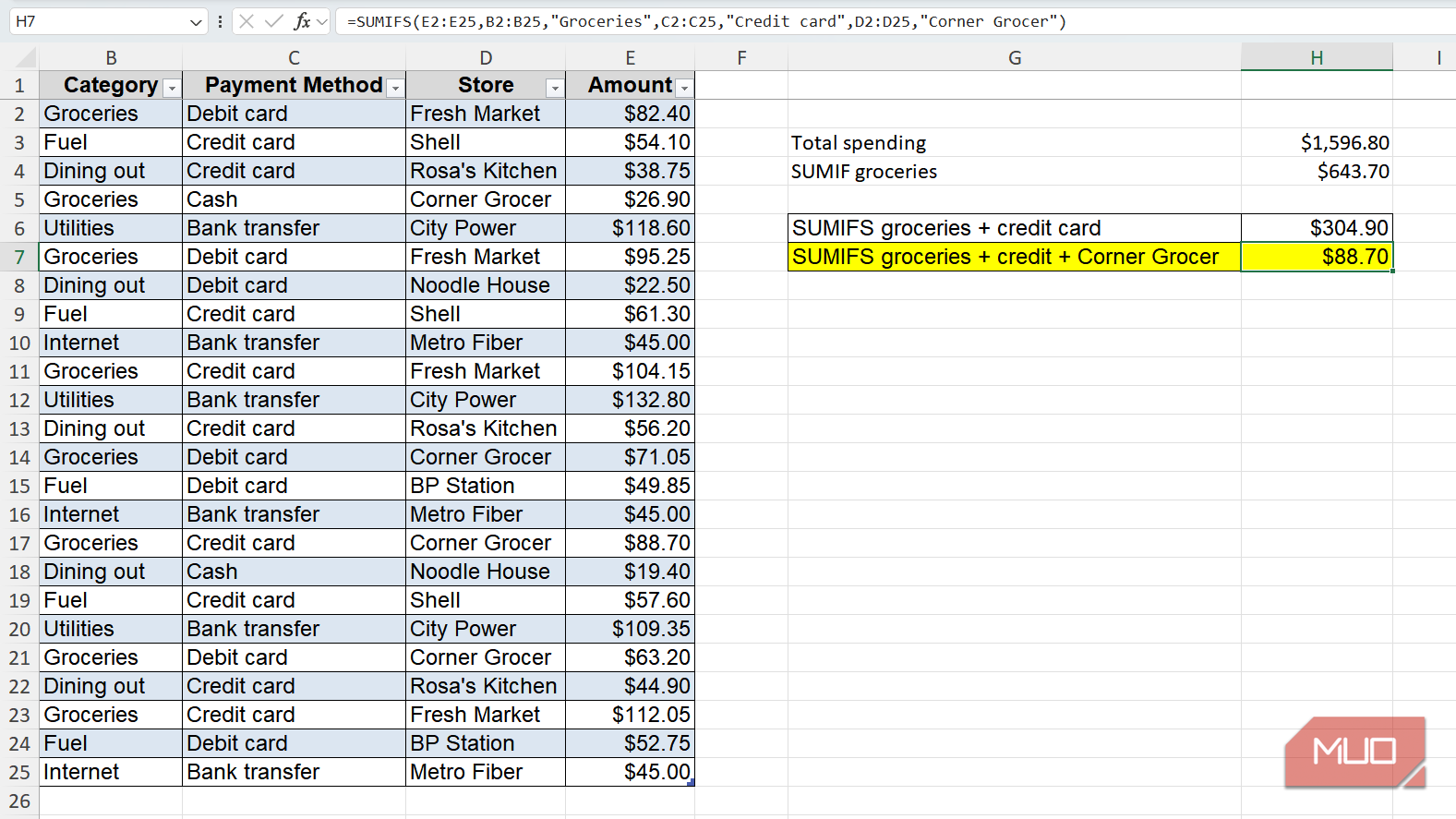
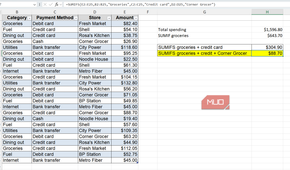
Narrowing further costs a comma. Adding the Store column and "Corner Grocer" as a third pair brings the same total down to $88.70. Every criteria form you already know from SUMIF carries over unchanged, including plain text, numbers, comparison operators written as text, wildcards, and cell references joined with an ampersand.
SUMIFS needs every criteria range to match the sum range in size. A mismatch returns a #VALUE! error instead of a wrong number, which makes it easier to catch than the equivalent mistake in SUMIF.
Date ranges are where SUMIF has no answer at all
Two conditions on one column is the wall you eventually hit

Quarterly spending is the question that settled this for me. A quarter has a start date and an end date, which means two conditions applied to the same column. SUMIF accepts one criterion, so the question is out of reach by design rather than by awkwardness.
SUMIFS handles it by pairing the Date column twice. The formula =SUMIFS(E2:E25,A2:A25,">="&DATE(2026,1,1),A2:A25,"<="&DATE(2026,3,31)) returns $1,003.85 for the first quarter of this year. Wrapping each boundary in DATE rather than typing it as text keeps the formula working no matter how your system formats dates.
Layering a category pair on top gives me the breakdown I actually want. First-quarter groceries come to $379.75, and utilities to $251.40, from one formula each.


You can reach those numbers with SUMIF if you insist. A helper column that flags the quarter works, so does subtracting one running total from another, and so does SUMPRODUCT. All three leave you with something extra to maintain, which is usually a sign that a formula has aged past its usefulness.
The argument order pays off elsewhere too. AVERAGEIFS, MAXIFS, and MINIFS all put the aggregate range first and take the same criteria pairs, while COUNTIFS takes the pairs on their own. Learn the pattern once, and you have the whole set.
I reach for SUMIFS even when there is only one condition
Keeping two functions in your head costs more than the extra argument

Analysis rarely stops at the first question. I ask for a category total, then immediately want it split by payment method or narrowed to one month, and rewriting a SUMIF at that point means re-entering the arguments in a different order. Starting in SUMIFS means the next condition is a comma away.
SUMIF does keep two small advantages. Its sum range is optional, so adding up a column against its own values takes one argument fewer, and it tolerates a sum range that is a different size from the criteria range by working out the shape from the top-left cell. On a quick total in someone else's file, that brevity is genuinely convenient.
Neither convenience survives much scrutiny. The size tolerance in particular is closer to a trap, because it adds up cells you never selected and gives you a plausible-looking number with no warning. The extra argument in SUMIFS buys strictness, and strictness is what I want in a formula I plan to keep. So I have not struck SUMIF from my vocabulary. I no longer start there, which is a different thing, and one worth doing before you meet a spreadsheet where it matters. That habit is the same reason I keep testing the newer Excel functions that earn a place in a working file.
Conditional totals are the entry point
The question that finally sends me somewhere else
SUMIFS answers one question per cell, which is fine until I want every category broken down by every payment method. That is a grid of formulas to write and maintain, and it is where GROUPBY and PIVOTBY do the whole job in one formula instead.
The next thing I want to try in this tracker is feeding SUMIFS its criteria from cells rather than typing them, so two dropdowns turn one formula into a small interactive report. Swap in AVERAGEIFS or COUNTIFS and the same setup answers what a typical trip costs, or how often I go.

- OS
- Windows, macOS
- Supported Desktop Browsers
- All via web app
- Developer(s)
- Microsoft
- Free trial
- One month
- Price model
- Subscription
- iOS compatible
- Yes