


These days, almost every new smart TV comes with at least one USB port. They've been around for much longer than that, mind you; a Samsung TV I bought more than 15 years ago had them, although they were just USB 2.0 back then.
Despite how long smart TVs have shipped with USB ports, most folks still aren't actually putting them to good use. But that little port can do a lot more than you might expect.
Play high-quality local media files
If you have local media, transfer it via USB

There’s something satisfying about having your own collection of music, movies, and shows ready to play. No buffering, no internet problems — just instant access. Load a USB flash drive or external hard drive with your favorite content, plug it into the TV’s USB port, and use the built-in media player to navigate and play the files.
Not all TVs support every file format, so check your TV’s user manual to see which ones work. If a file doesn't play, you can use any free music converter or Windows video converter to reformat it. Otherwise, you might see an "Unsupported File Format" error message.
If you’re watching a foreign movie (or just something with mumbling actors), you can add subtitle files (.SRT or .SUB) in the same folder as the video, with the same filename. Most smart TVs recognize them automatically; if not, you can manually select the file.
Transform your smart TV into a digital photo frame
Personal photos on the big screen

If you have a USB drive with a folder (or multiple folders) of photos, you can plug it into your TV and start a slideshow. Some TVs let you tweak the settings, changing transitions or how long each image stays on screen.
I do this during family gatherings. Instead of passing a phone around, I let the TV handle it. People notice a familiar face or a forgotten moment, and suddenly, stories start flowing. It fills the room with memories. This works beyond home, too. In the waiting area of a business office, for example, a slideshow on your TV can showcase work, services, or anything worth highlighting.
Some TVs even let you set a photo slideshow as a screensaver. When the screen would otherwise be dark, it cycles through your images instead. It's simple, but it turns an idle screen into something useful. Furthermore, some TVs are built with this specifically in mind. Samsung and other manufacturers now build art TVs, with dimensions and coatings designed to bring the best out of your photos, artwork, and similar.
Install firmware updates
Keeping a USB firmware backup is also handy


 Credit: Chris Hachey / MakeUseOf
 Credit: Chris Hachey / MakeUseOf
 Credit: Chris Hachey / MakeUseOf
 Credit: Chris Hachey / MakeUseOf
 Credit: Tashreef Shareef / MakeUseOf
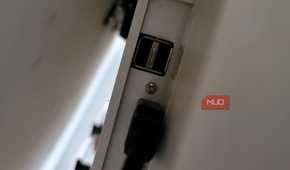
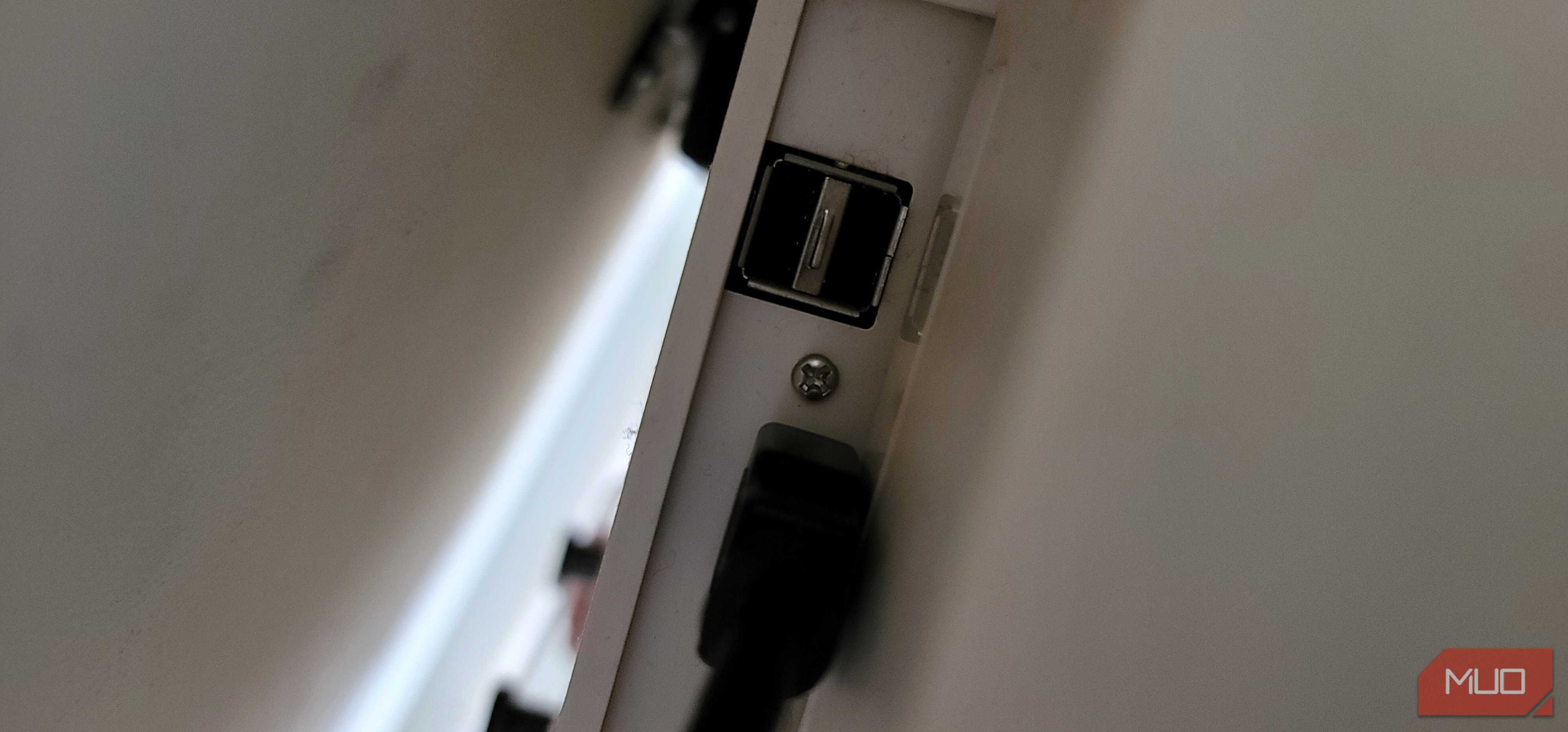
Many TV brands let you manually download the latest firmware update from their official website, transfer it to a USB stick, and install it directly on your TV. To do so, you need to navigate to the software update section in your TV's settings and follow the on-screen instructions.
While most modern smart TVs handle their firmware updates automatically over Wi-Fi, you may find yourself in a situation where a direct USB update saves the day. Maybe your TV is struggling to download a large update over a weak connection, or perhaps you've got an older TV model that's acting up. That's when this method comes in handy—you may even prefer it over network updates.
Always use a reliable USB drive, and don’t remove it during the update. Interrupting the process could leave your TV stuck, which is a big problem.
Connect peripherals
Navigating with a remote is awful, and everyone knows it

You've probably struggled with the slow, clumsy process of navigating and typing on a TV remote—one letter at a time. A wireless USB keyboard and mouse can make things much easier. Just plug the combo dongle into the USB port, and navigating your favorite streaming apps or typing in passwords becomes so much easier.
If your TV has built-in gaming options (like Samsung models from 2020 onward), you can also connect a USB game controller. With cloud gaming services like Xbox Game Pass or GeForce Now, your TV becomes a casual gaming setup. Most controllers work right away, so all you have to do is plug them in.
That said, not every USB device will be compatible. It’s worth checking your TV’s manual or support page before buying anything. In my experience, basic peripherals like keyboards and mice tend to work best, while more complex devices can be hit or miss.
Charge and power your devices
Anything with low power requirements is fair game

Most TV USB ports aren’t exactly powerhouses of output. Many provide just 5V at 500mA or 1A, which is fine for trickle-charging smaller gadgets but not ideal for fast-charging your phone. Still, it’s a great backup option, especially for overnight charging or keeping your accessories topped up.
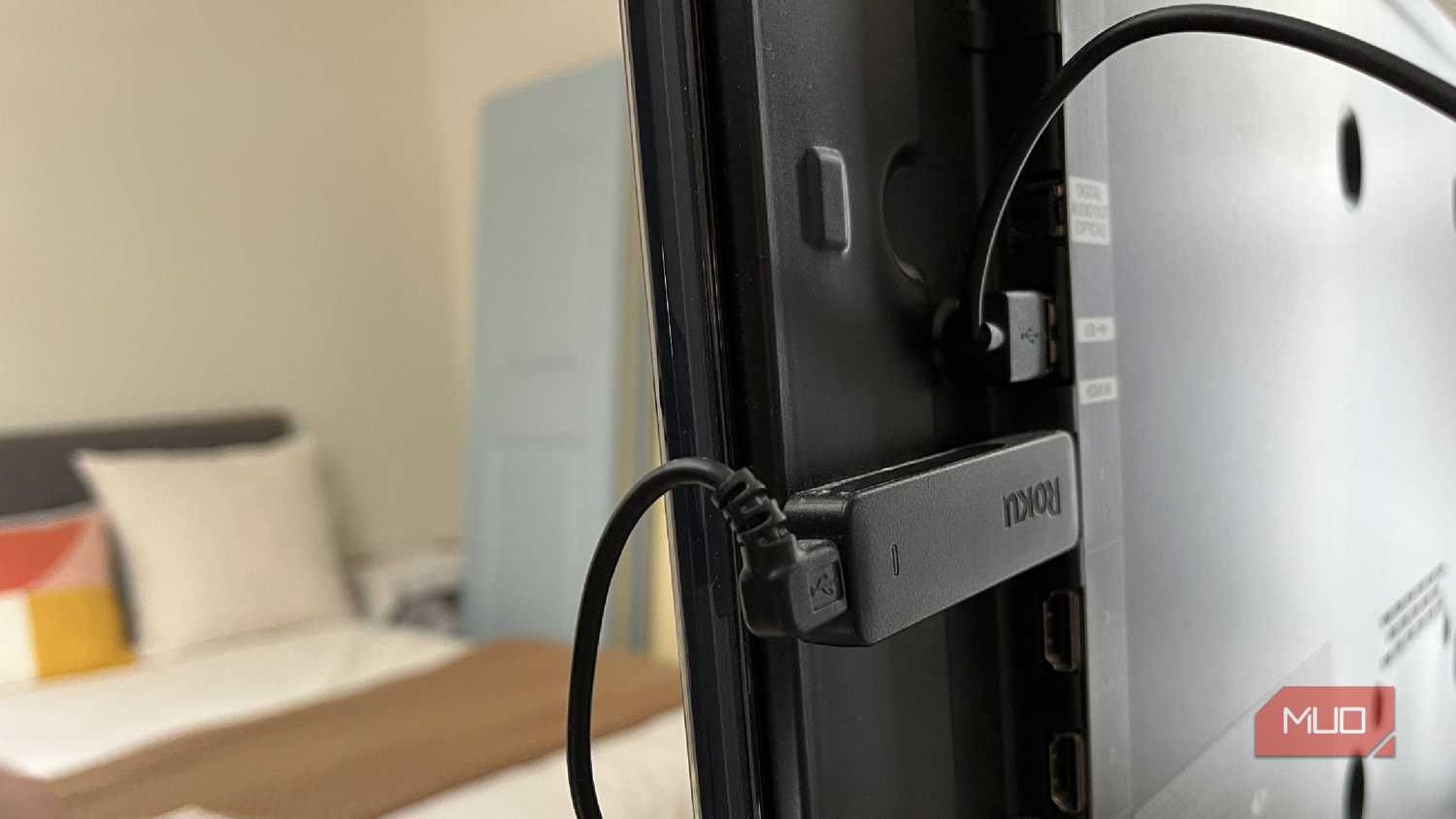
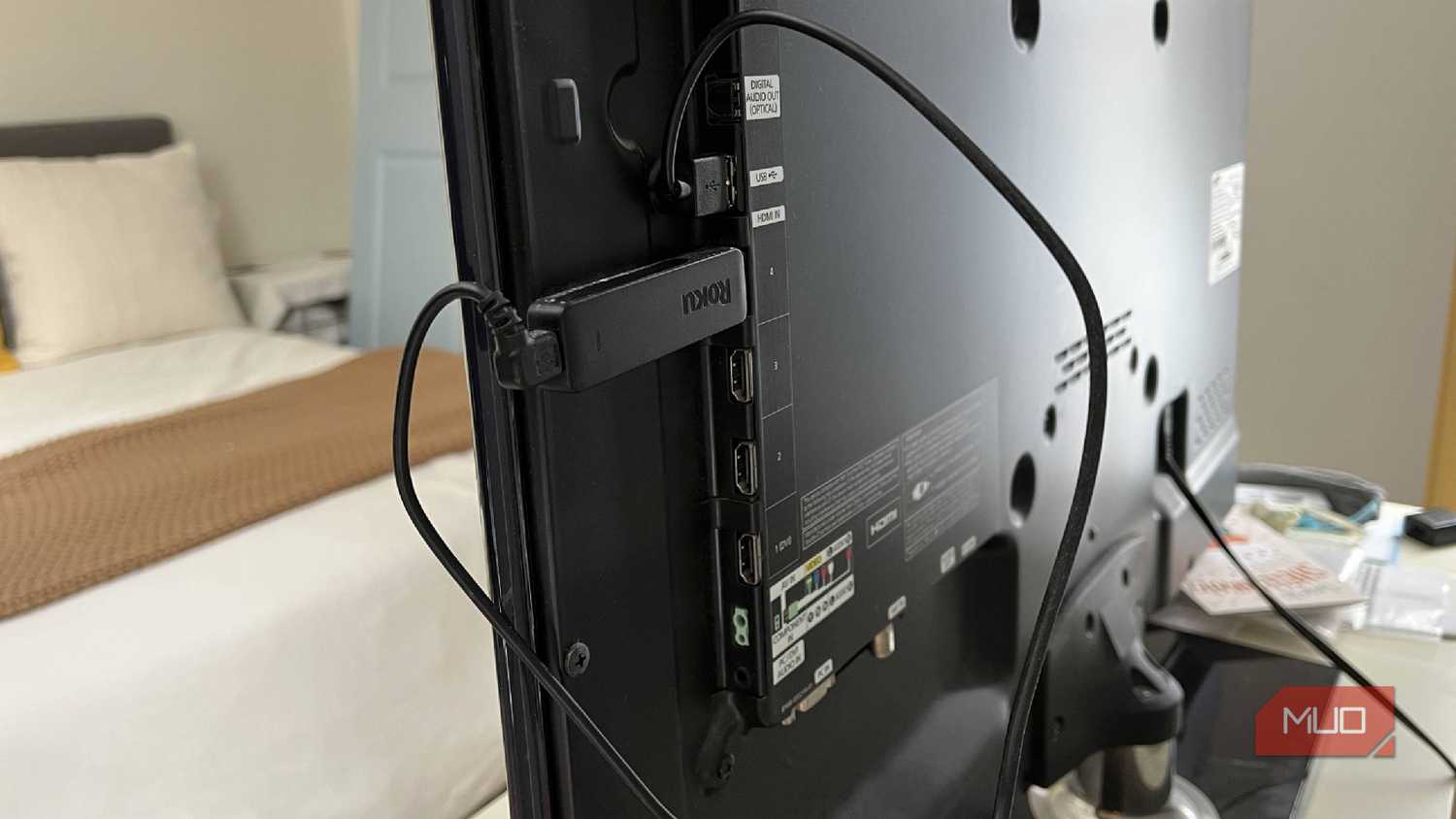
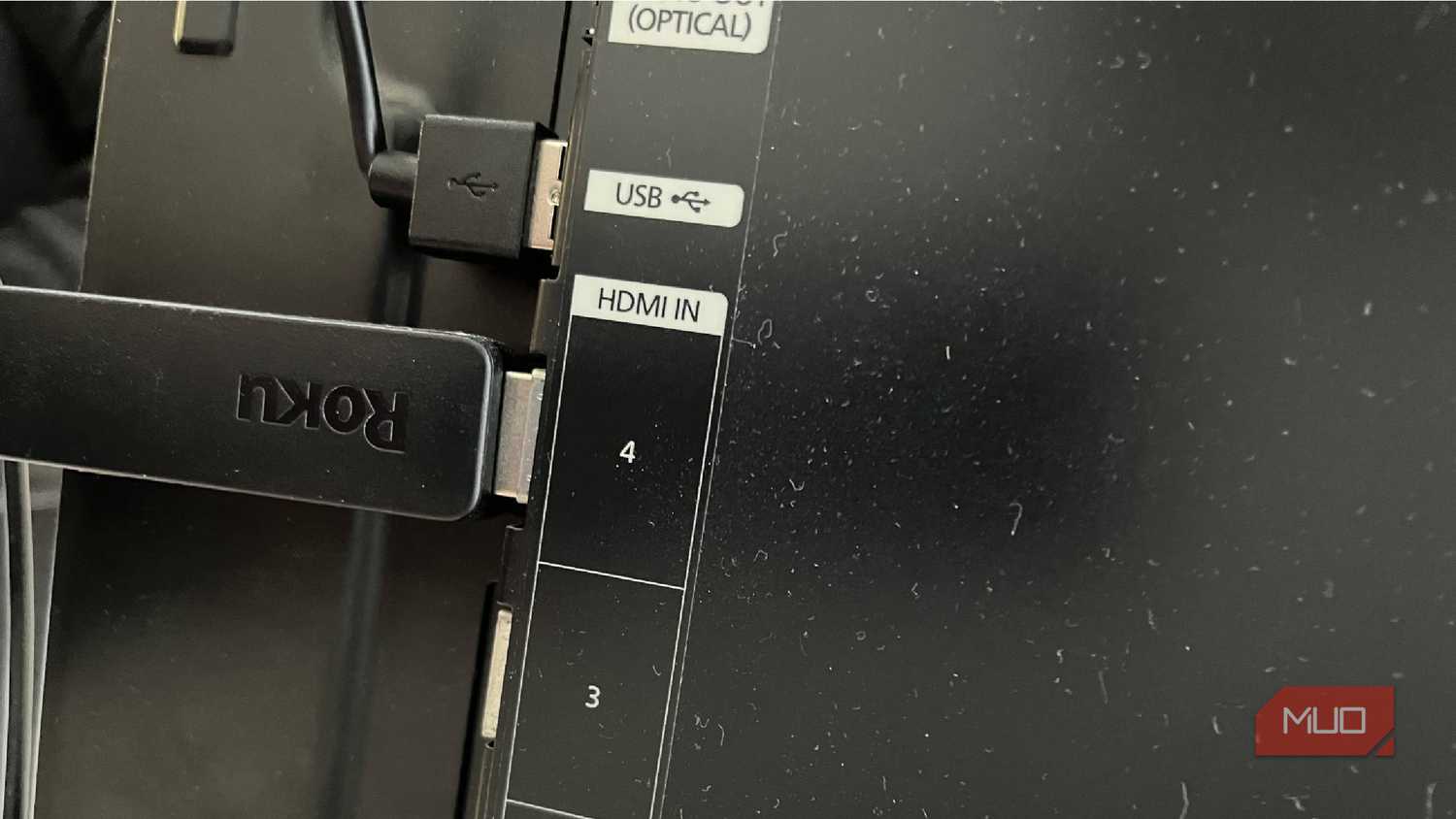
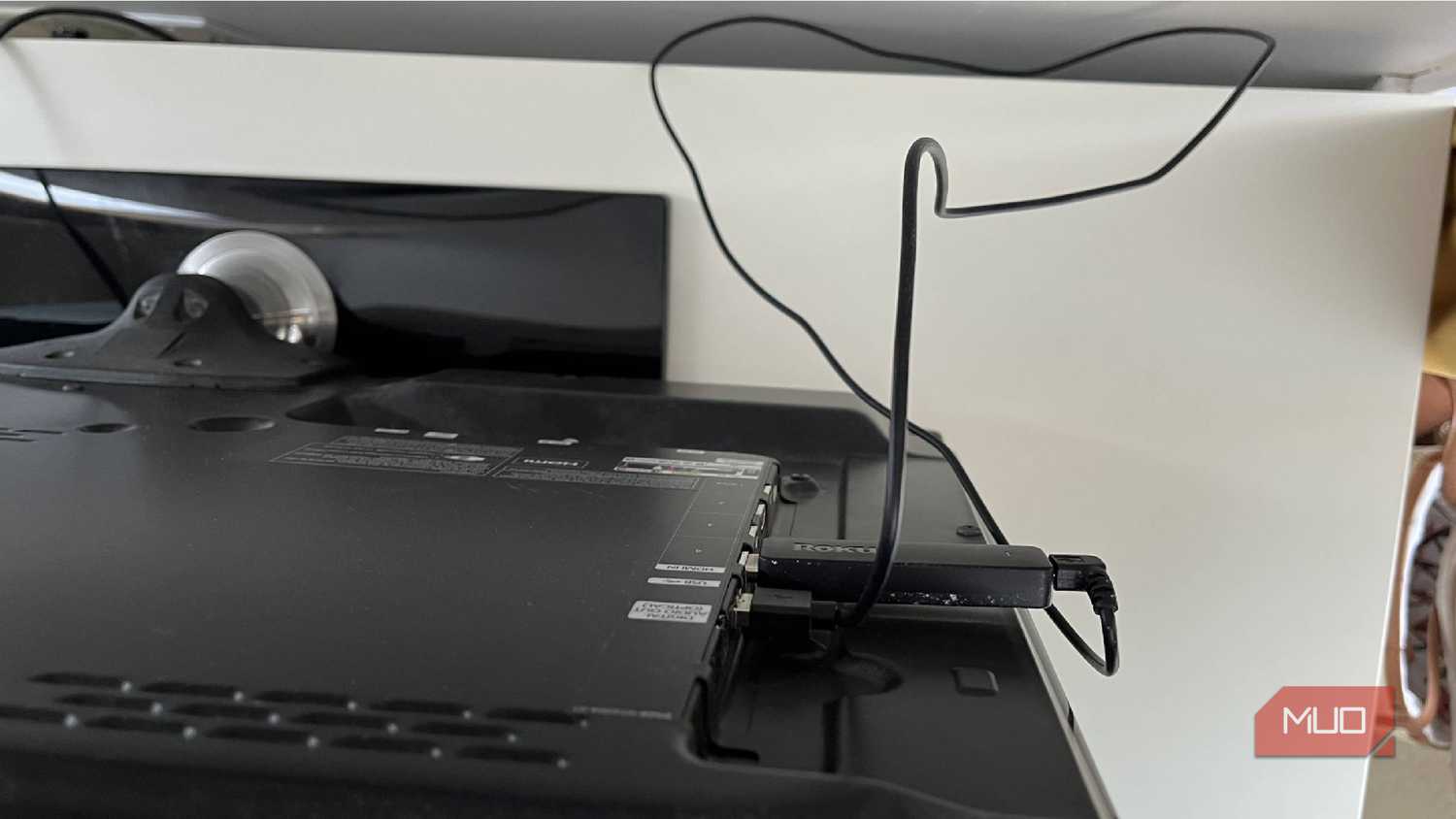
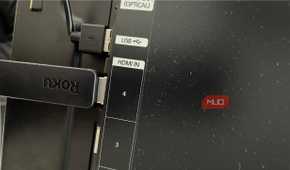
Beyond just charging, your TV’s USB port can also power popular streaming devices like a Roku Stick, Amazon Fire Stick, or Google Chromecast. While they usually come with an AC power adapter, you can ditch the wall plug and power them directly from your TV. This frees up an outlet and makes the device turn on and off with the TV, so it’s not wasting power in the background.

Another neat use for a TV’s USB port is powering LED backlight strips. These lights not only enhance the look of your setup, but can also reduce eye strain when watching TV in a dark room. Since they switch on and off with the TV, there’s no need to worry about manually controlling them.

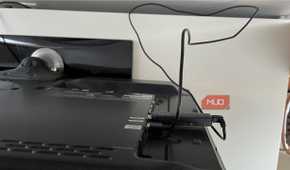
You can also connect a USB digital antenna (like this URIIU antenna in the image above) to expand your TV channel options. With it, you can watch many free over-the-air channels without big, clunky antennas or extra power cables. Just plug it in and perform a scan to find local channels around you. You'll find it especially useful if you’ve dropped cable or want more options without paying for a subscription.